
Zoom in for better view.
A STEPWISE GUIDE ON “HOW TO SHARE SUBSCRIPTIONS IN SUBSPACE?”

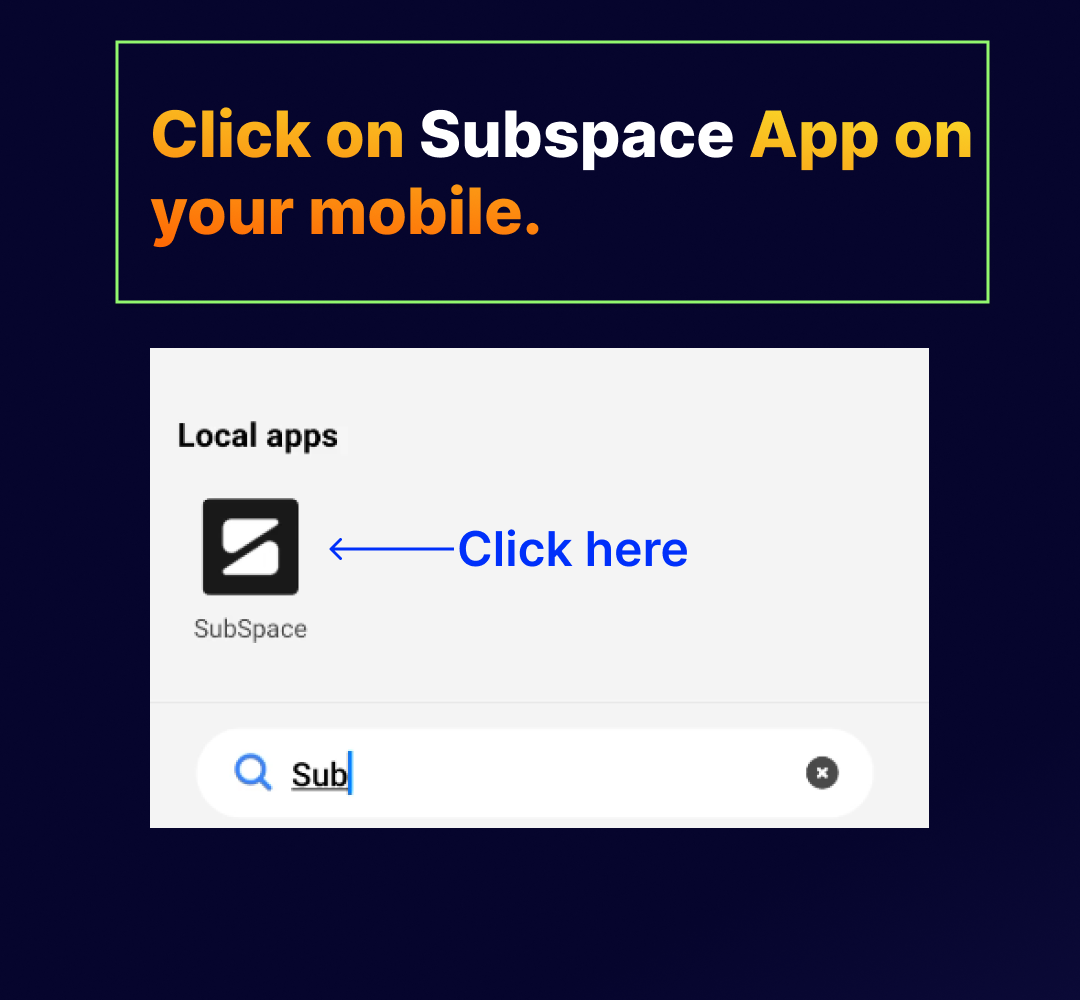
STEP 1: Click on Subspace App on your mobile.
STEP 2:
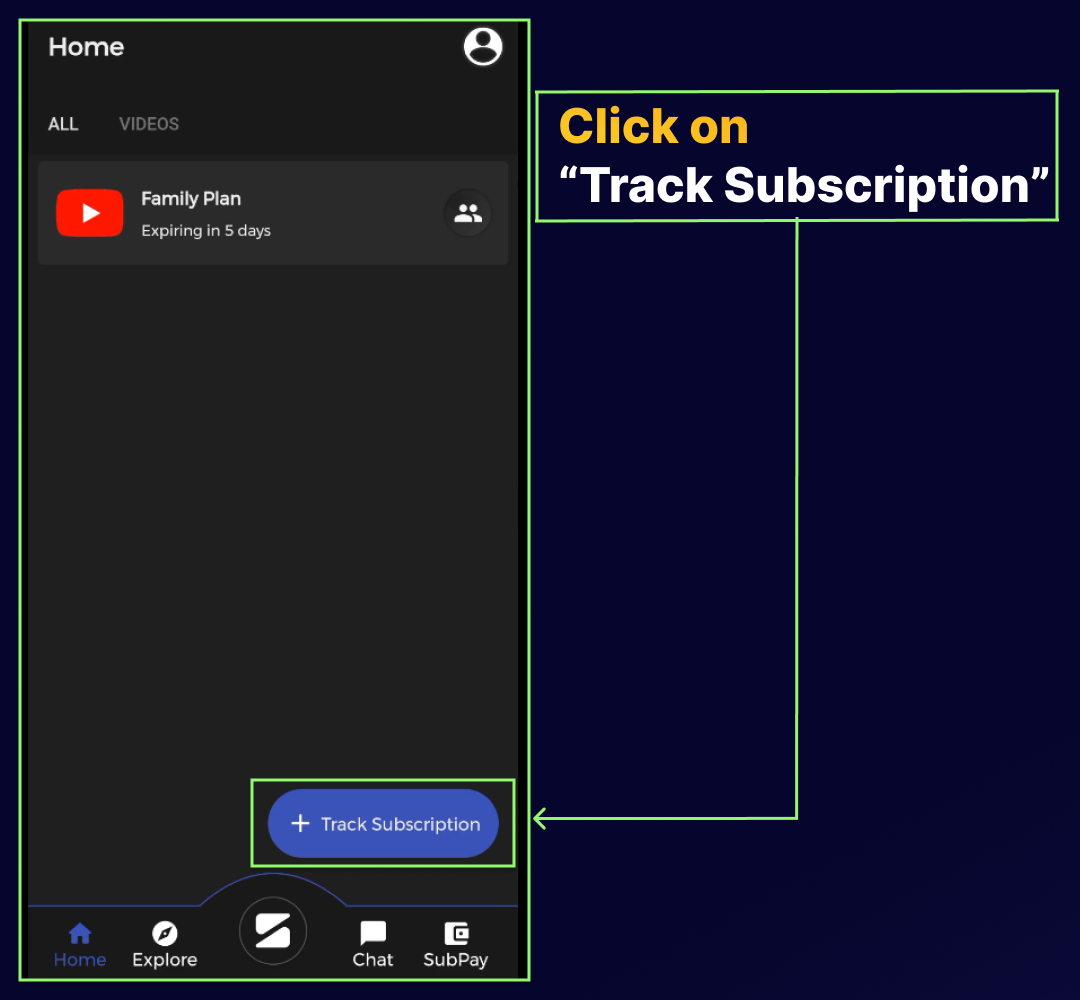
Click on “Track Subscription”
STEP 3:
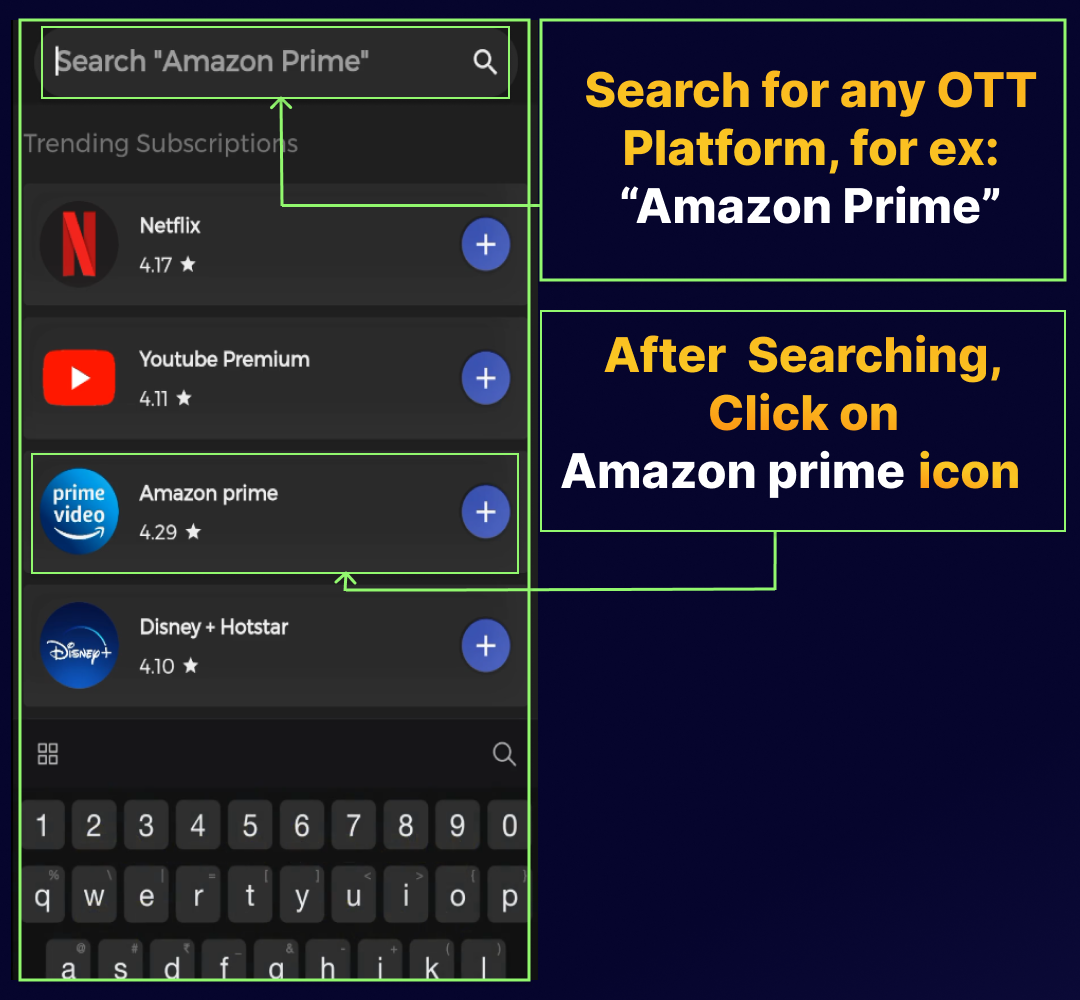
Search for any OTT Platform, for ex: “Amazon Prime”. After Searching, Click on Amazon prime icon.
STEP 4:
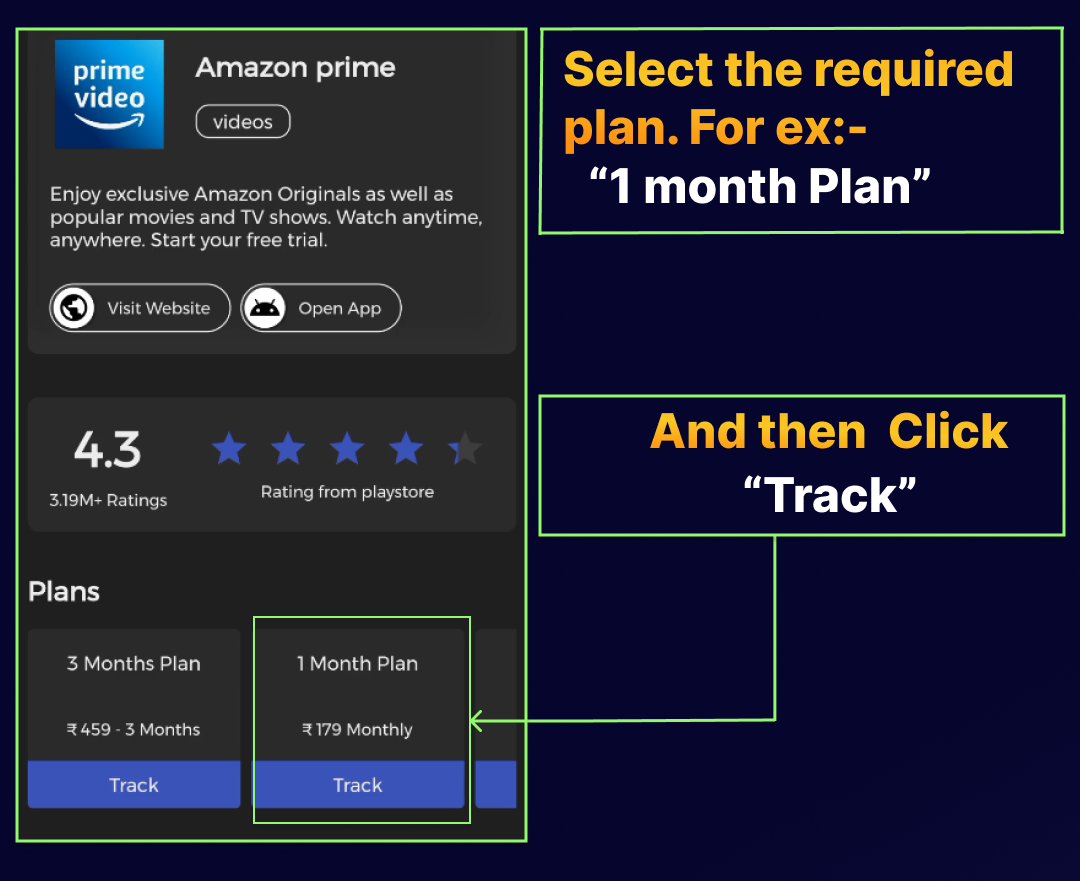
Select the required plan. For ex:- “1 month Plan” And then Click “Track”.
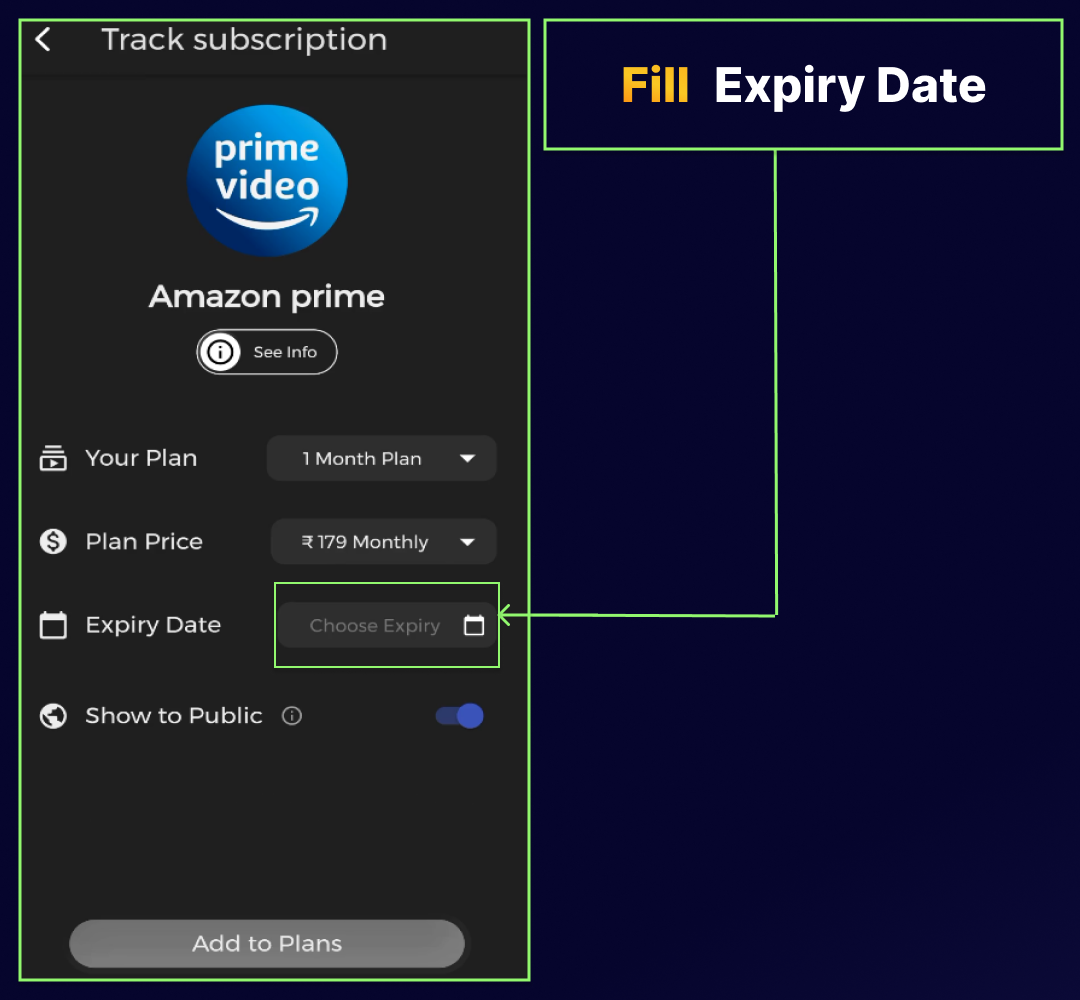
STEP 5: Fill Expiry Date
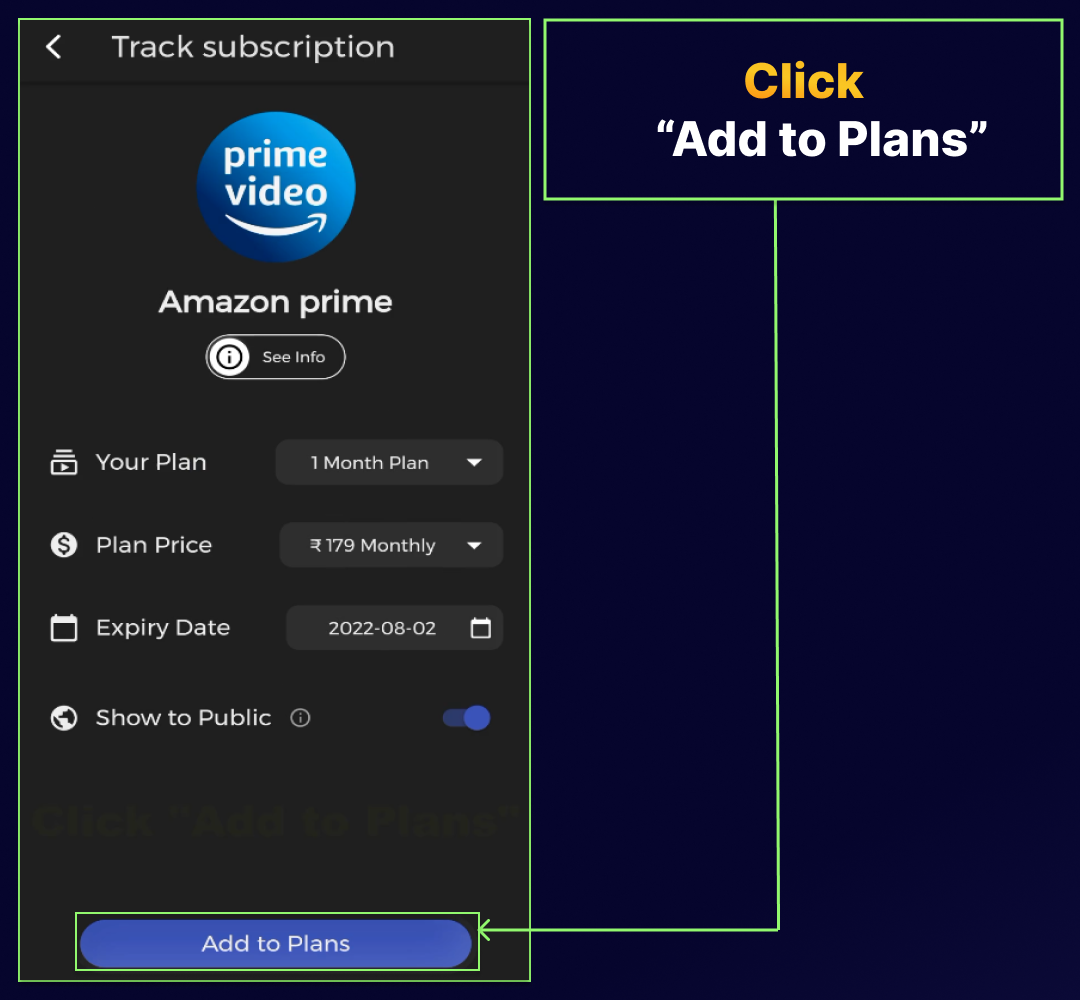
STEP 6: Click 'Add to Plans".
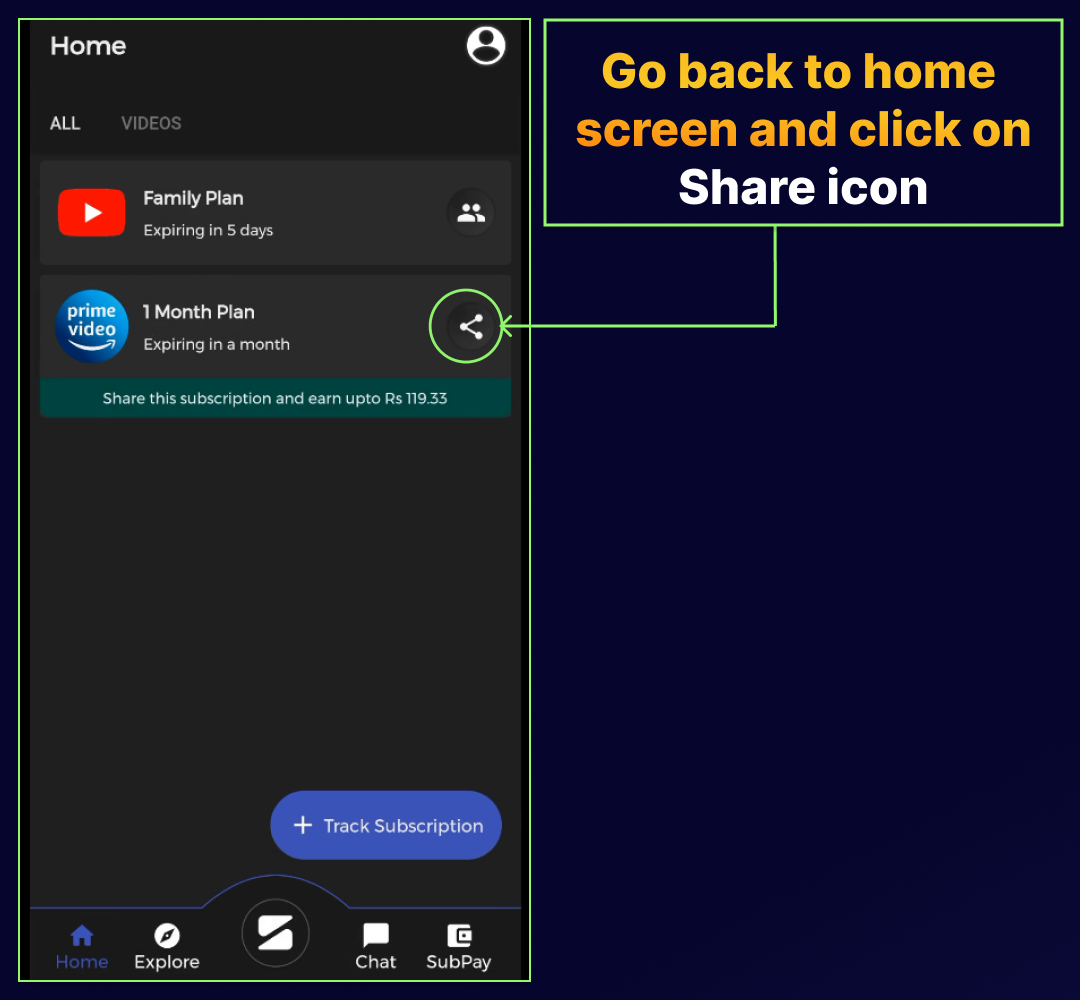
STEP 7:
Go back to home screen and click on Share icon.
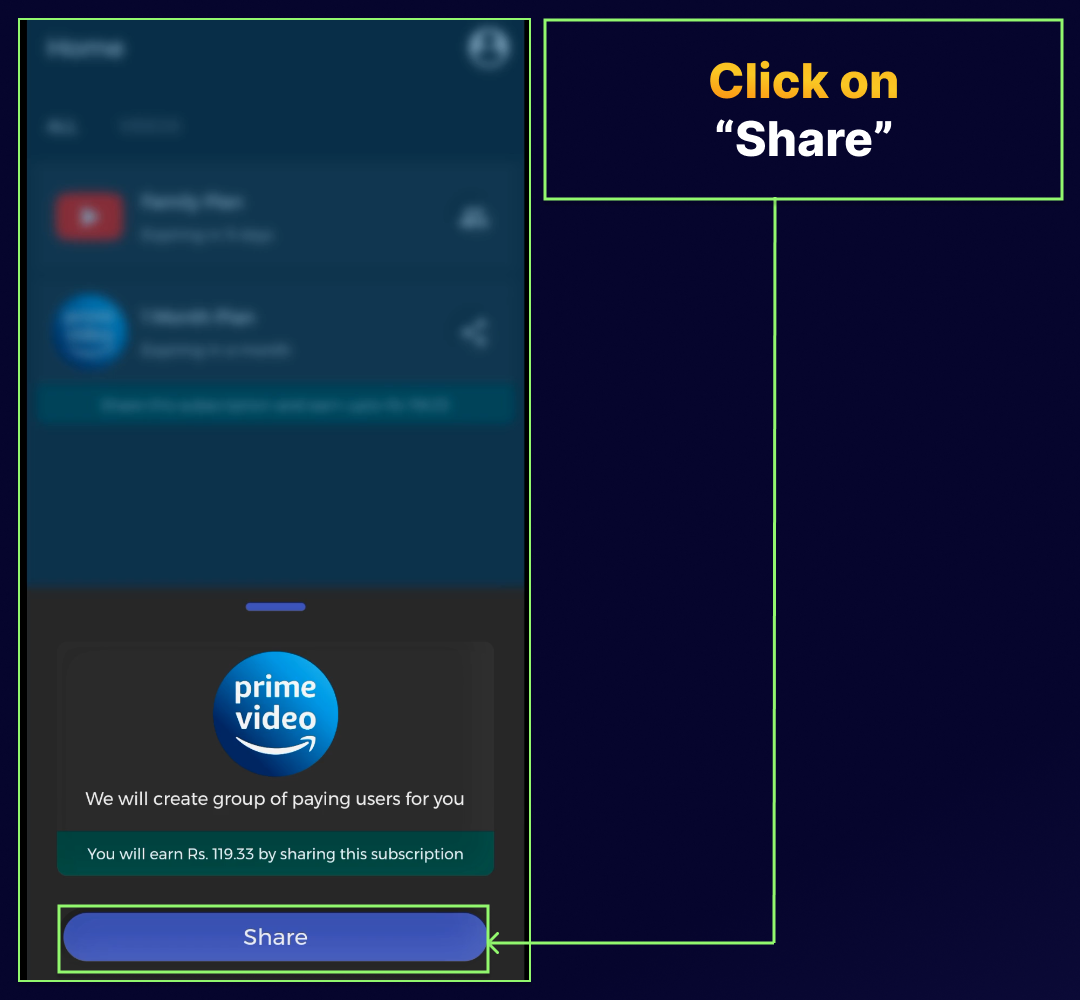
STEP 8: Click on "Share".
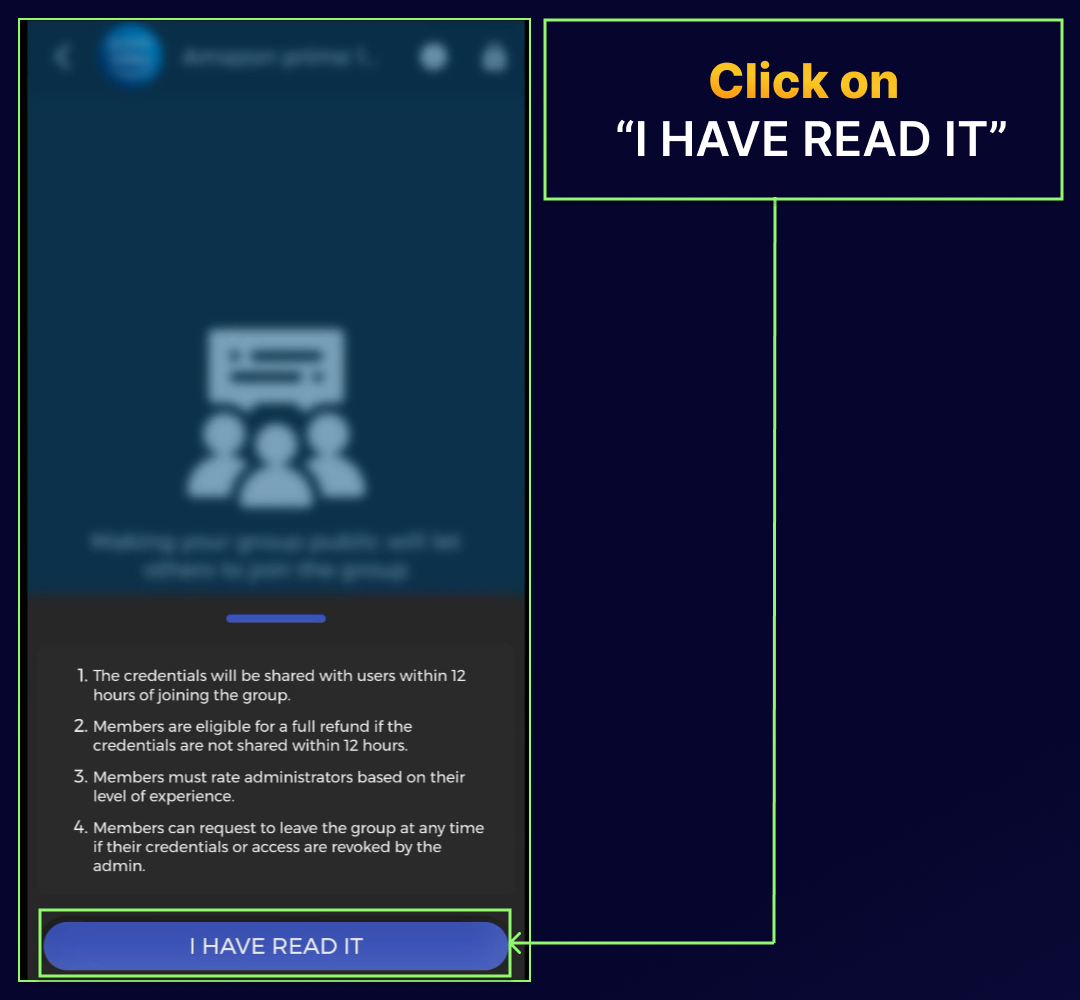
STEP 9: Click on "I have read it".
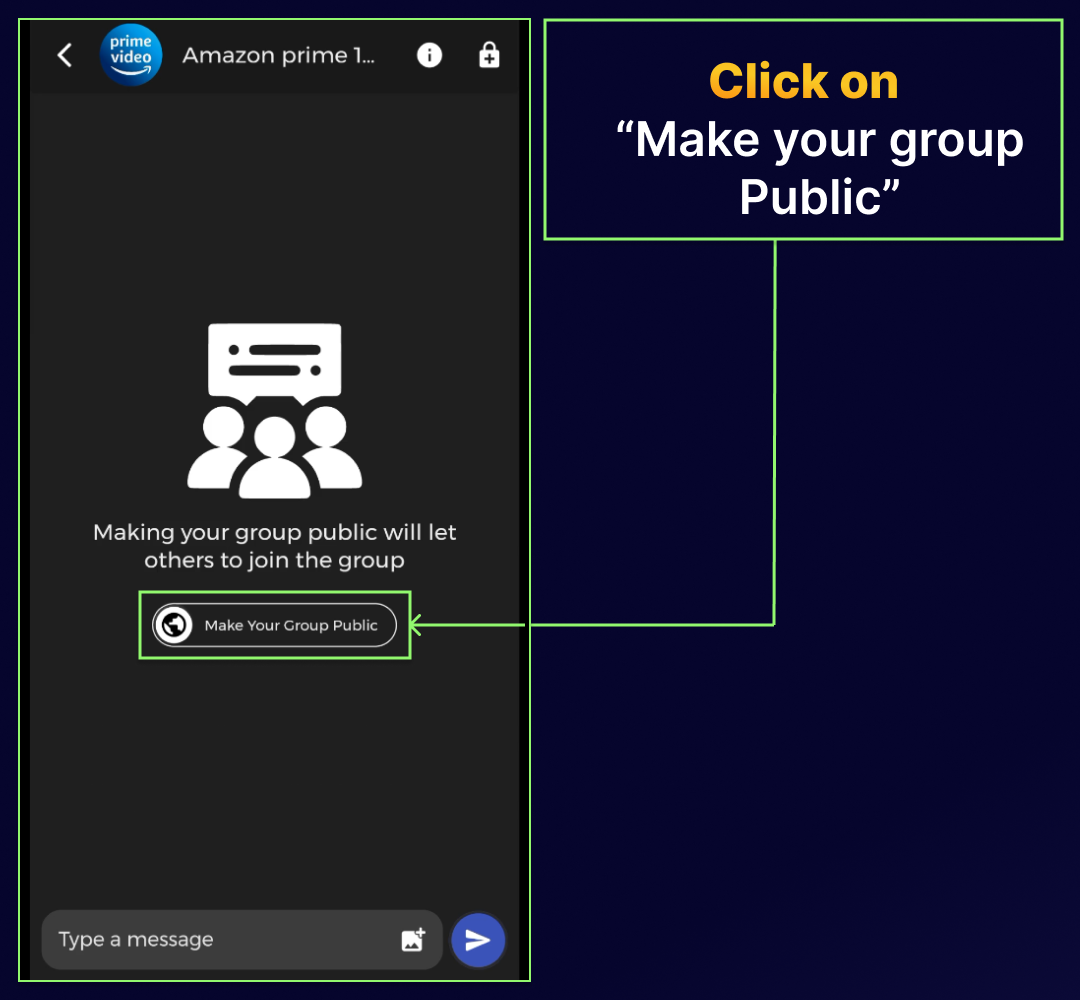
STEP 10: Click on
“Make your group Public”.
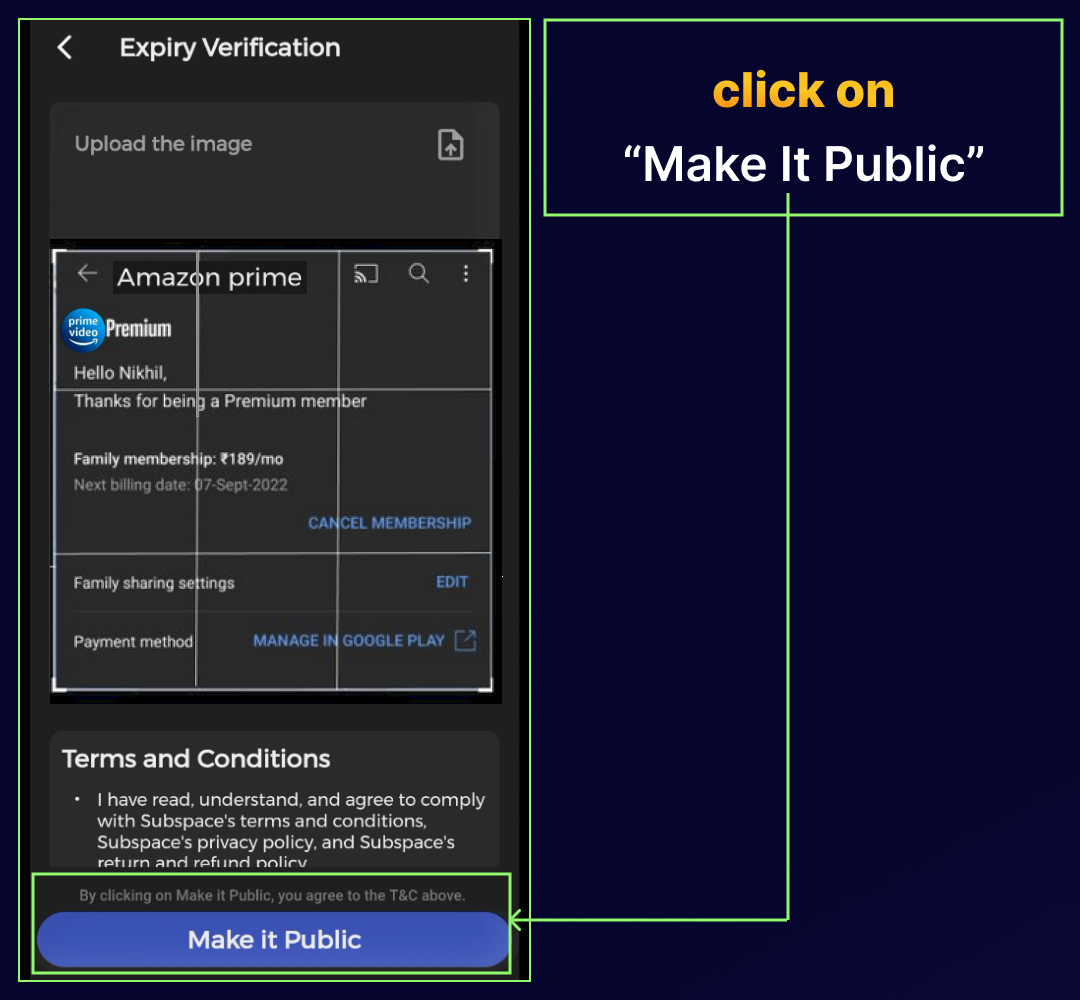
STEP 11: Upload a screenshot of the plan purchased for expiry verification.
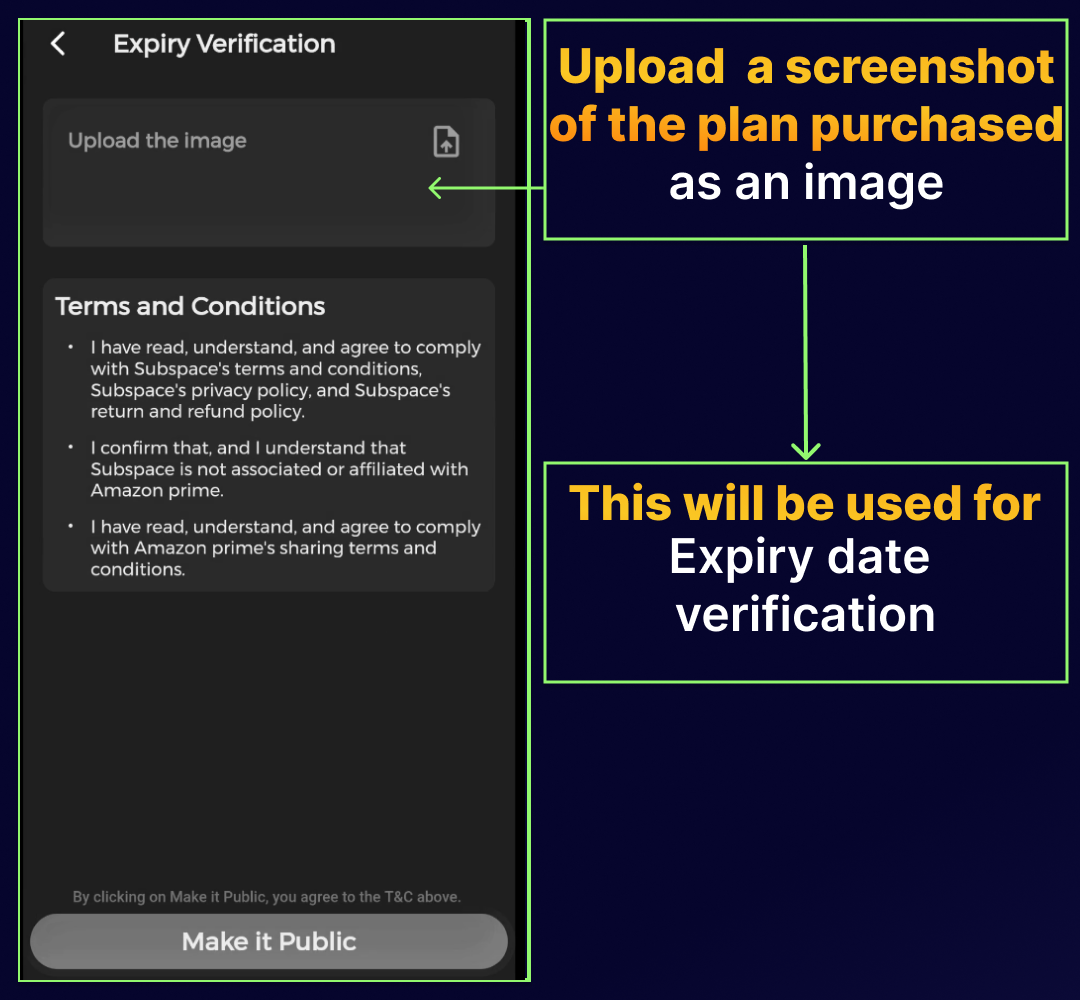
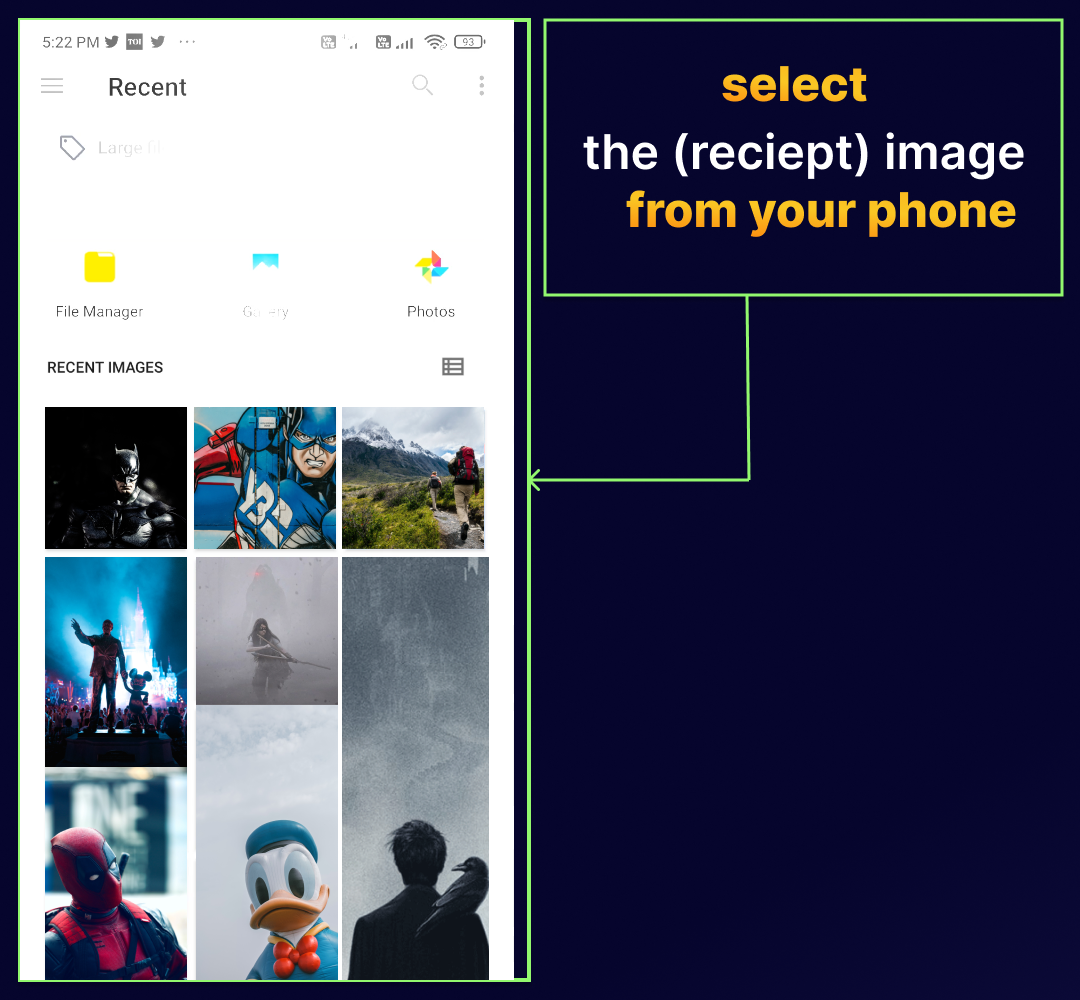
STEP 12: Select receipt image from your phone.Select receipt image from your phone.
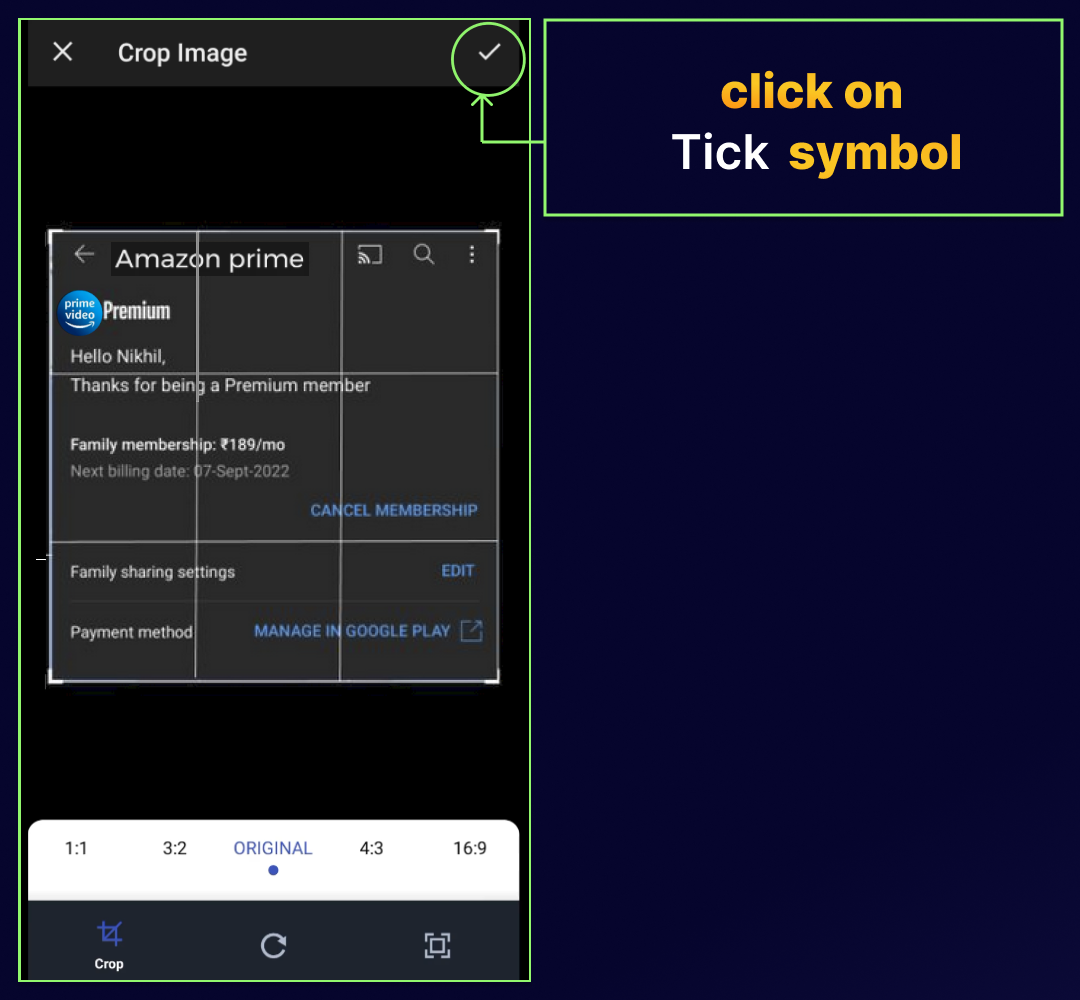
STEP 13: Click on "Tick" Symbol.
STEP 14: Click on "Make it Public".
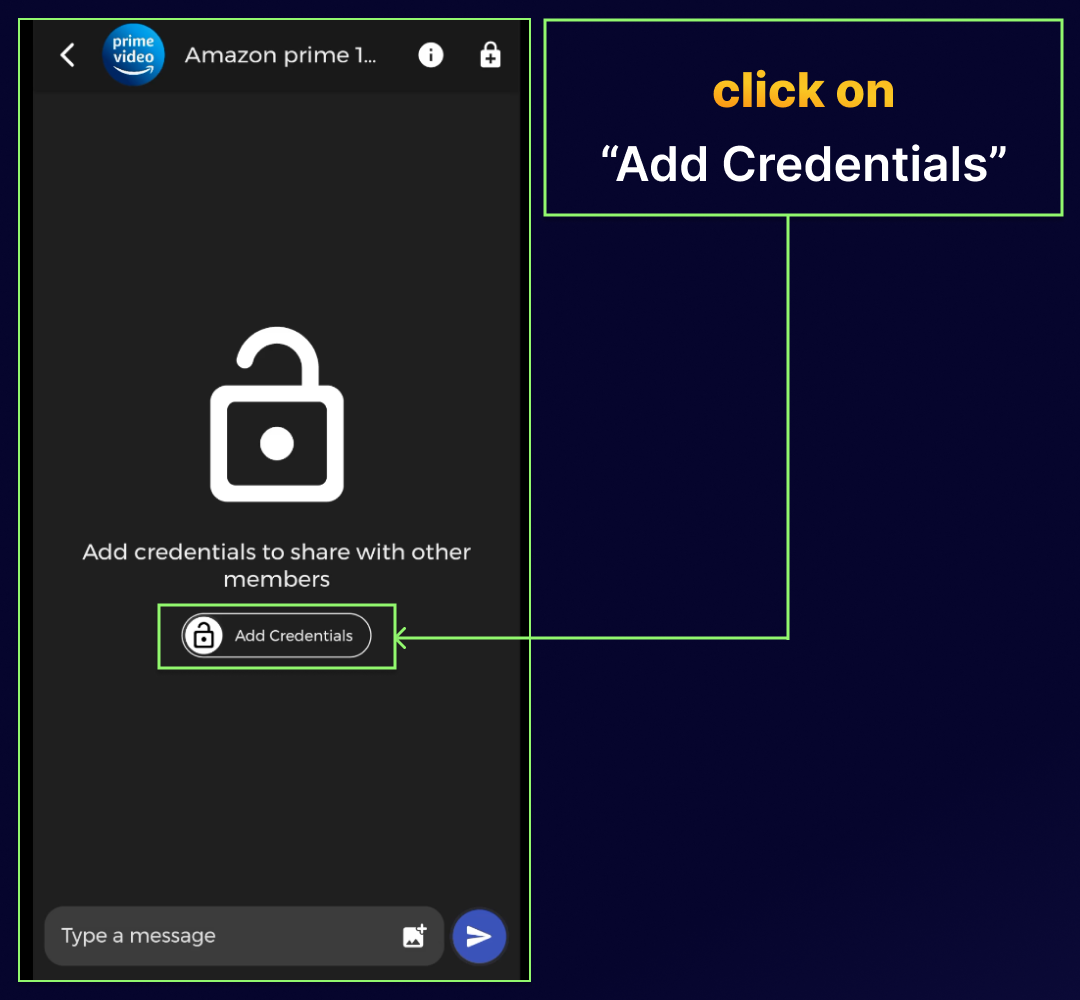
STEP 15: Click on "Add Credentials".
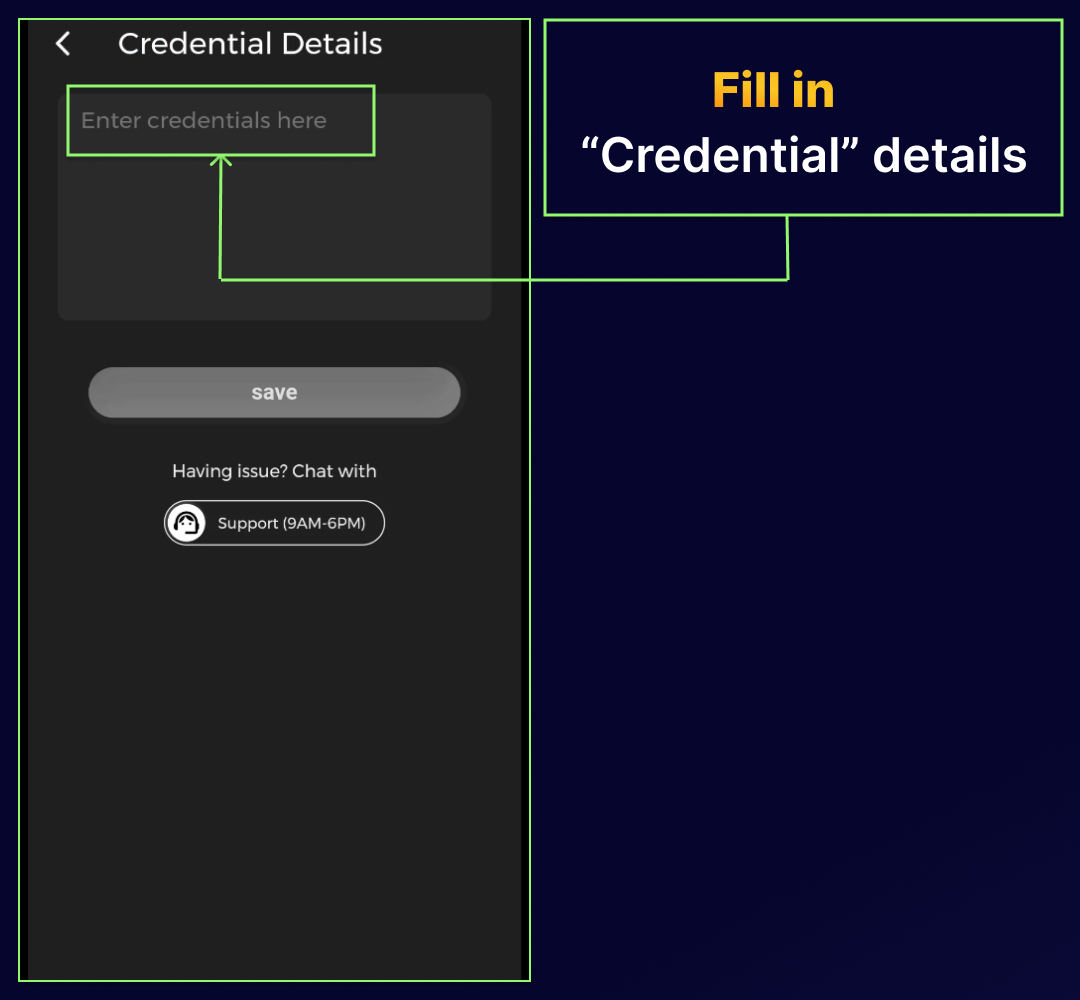
STEP 16: Fill in "Credential details".
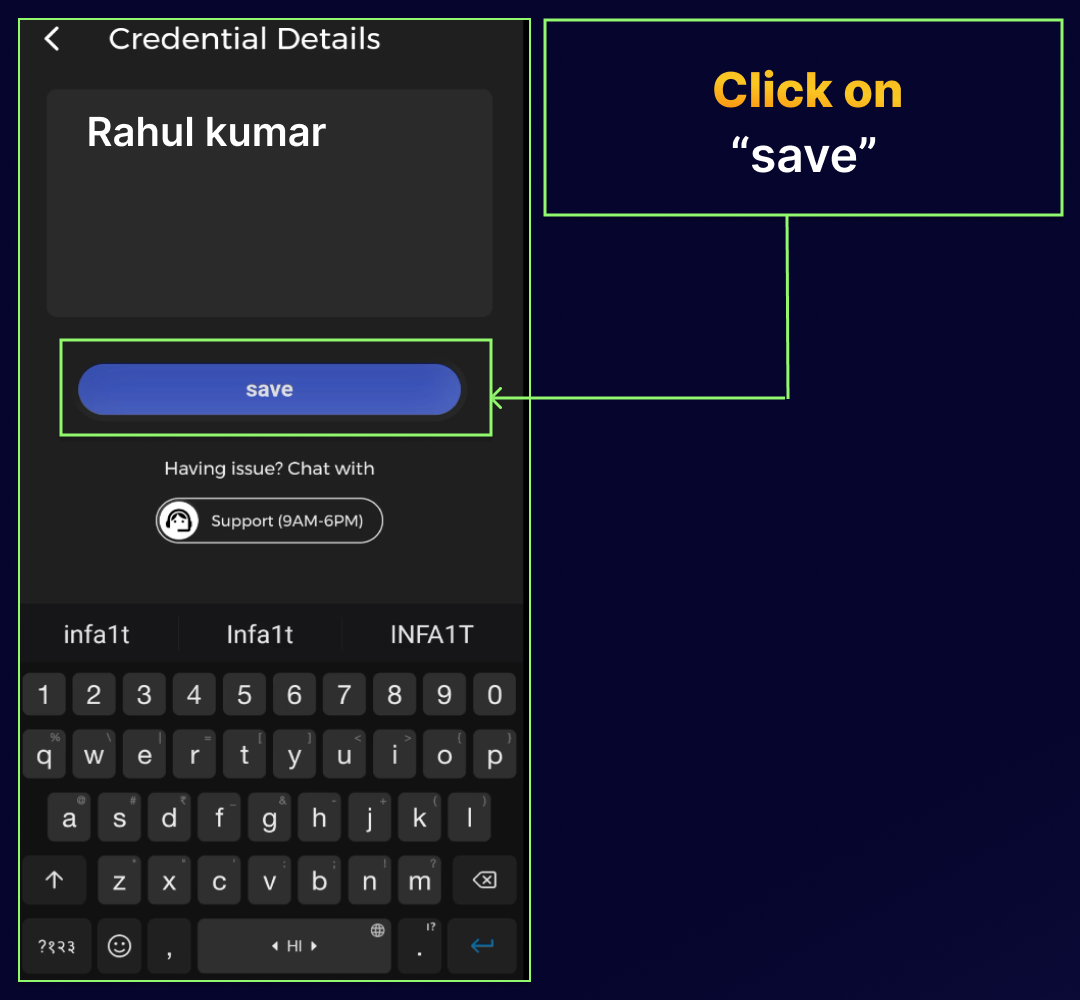
STEP 17: Click on "save".
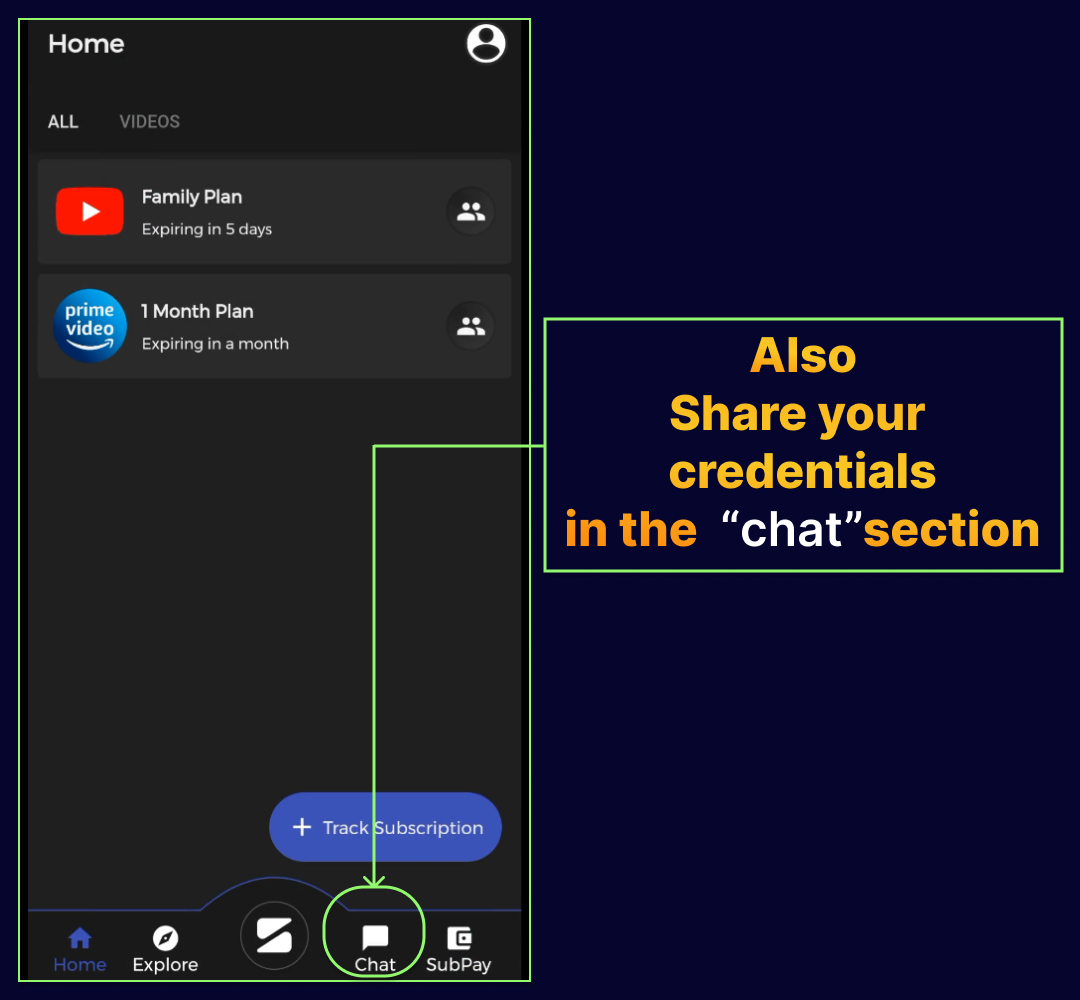
STEP 18: Come back to Home screen and wait for 12-24 hrs for plan approval from SUBSPACE. A group of 5 is created in the "Chat " section.
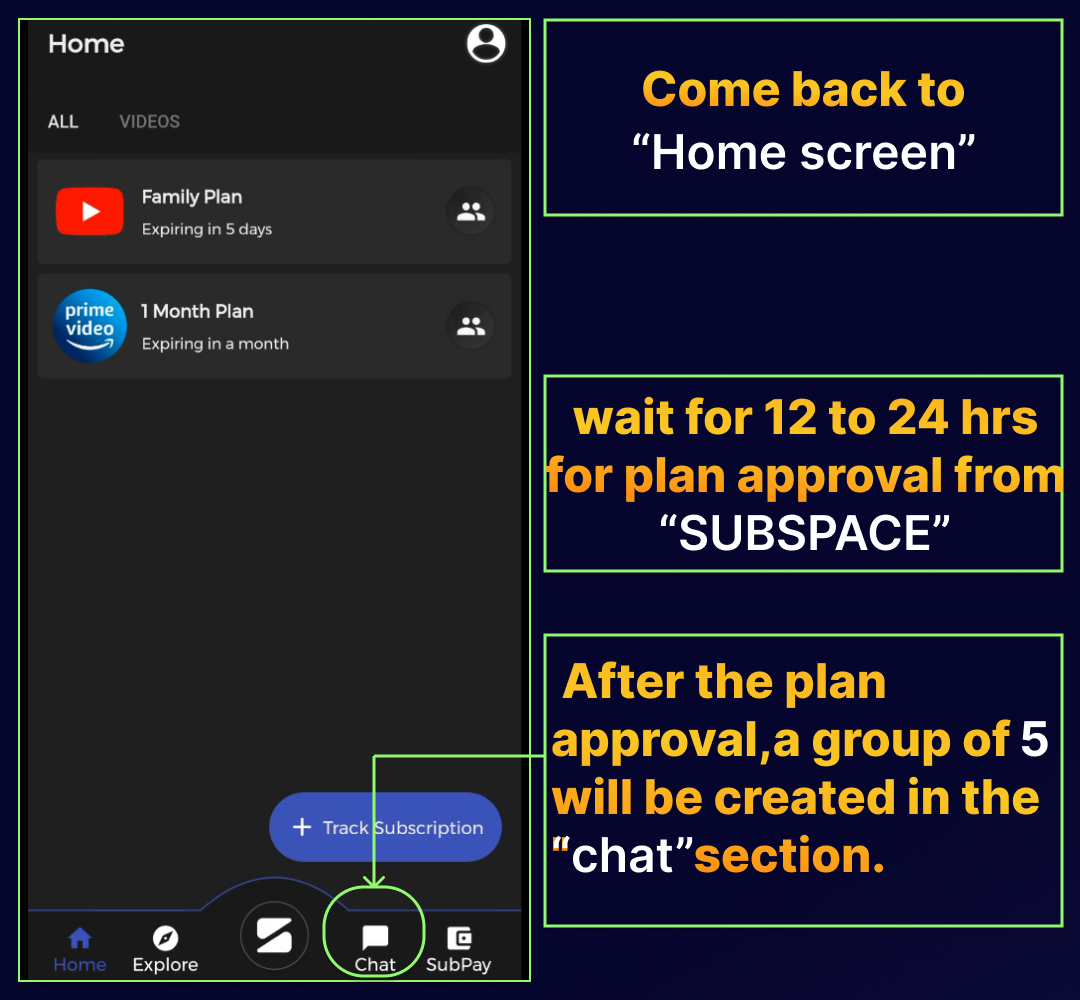
STEP 19: Share your credentials in the "Chat" section.