

Zoom in for better view and read the instructions carefully.

STEP 1: Purchase Spotify Family plan from Spotify app.
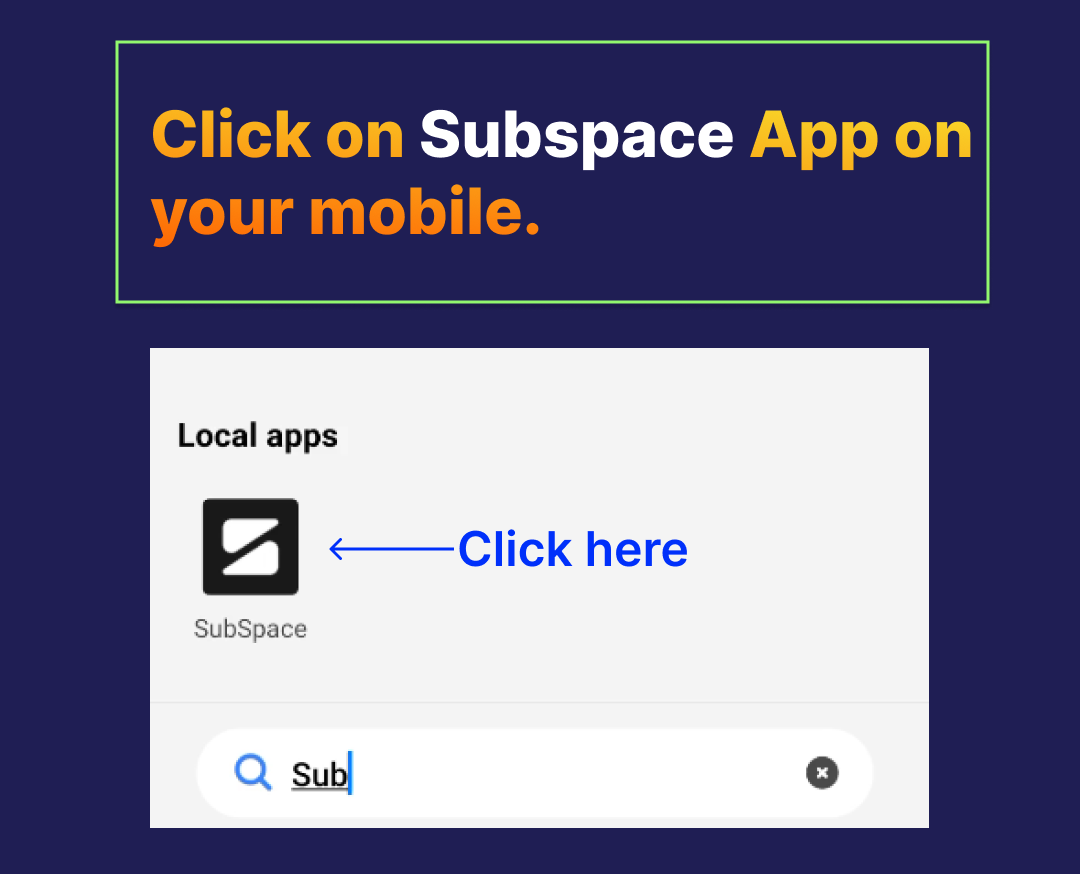
STEP 2: Click on Subspace App on Your Mobile.
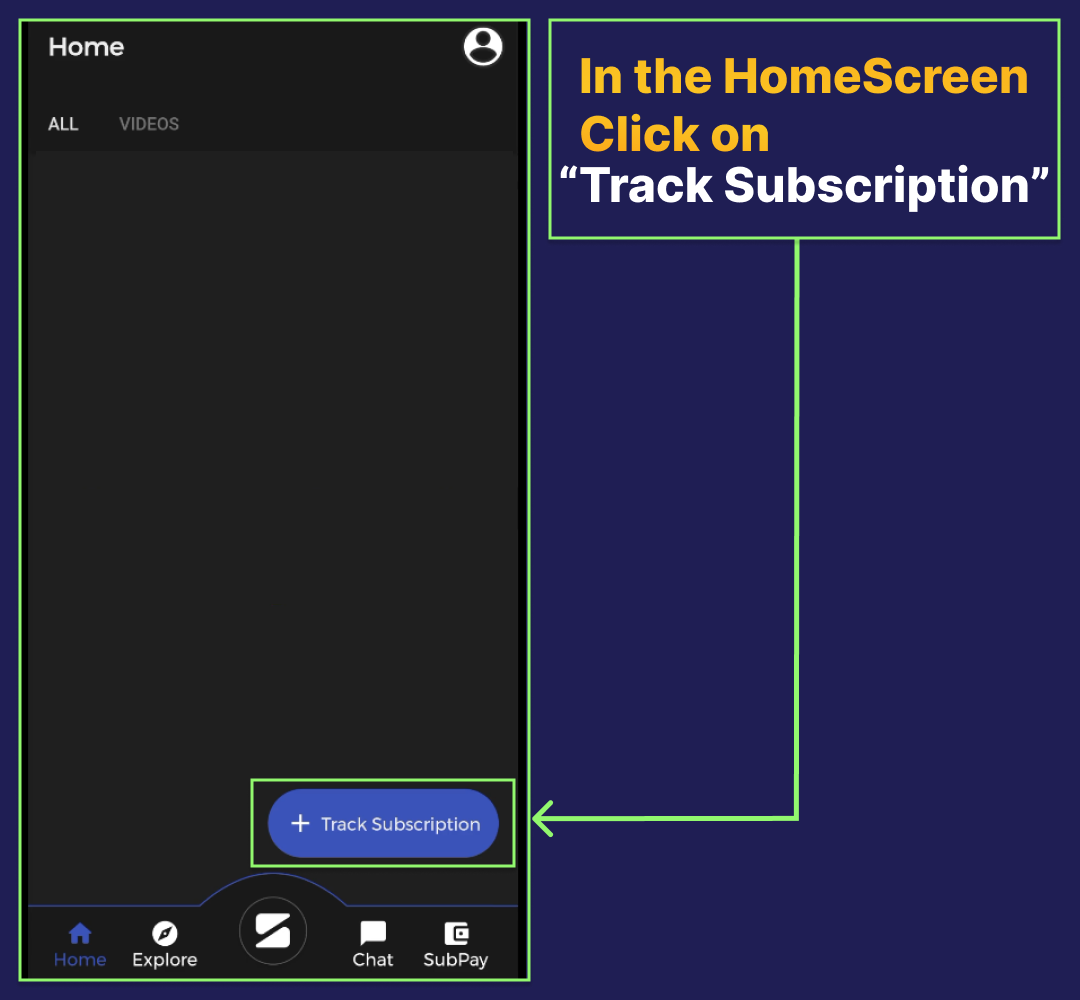
STEP 3: In the Home screen Click on "Track Subscription".
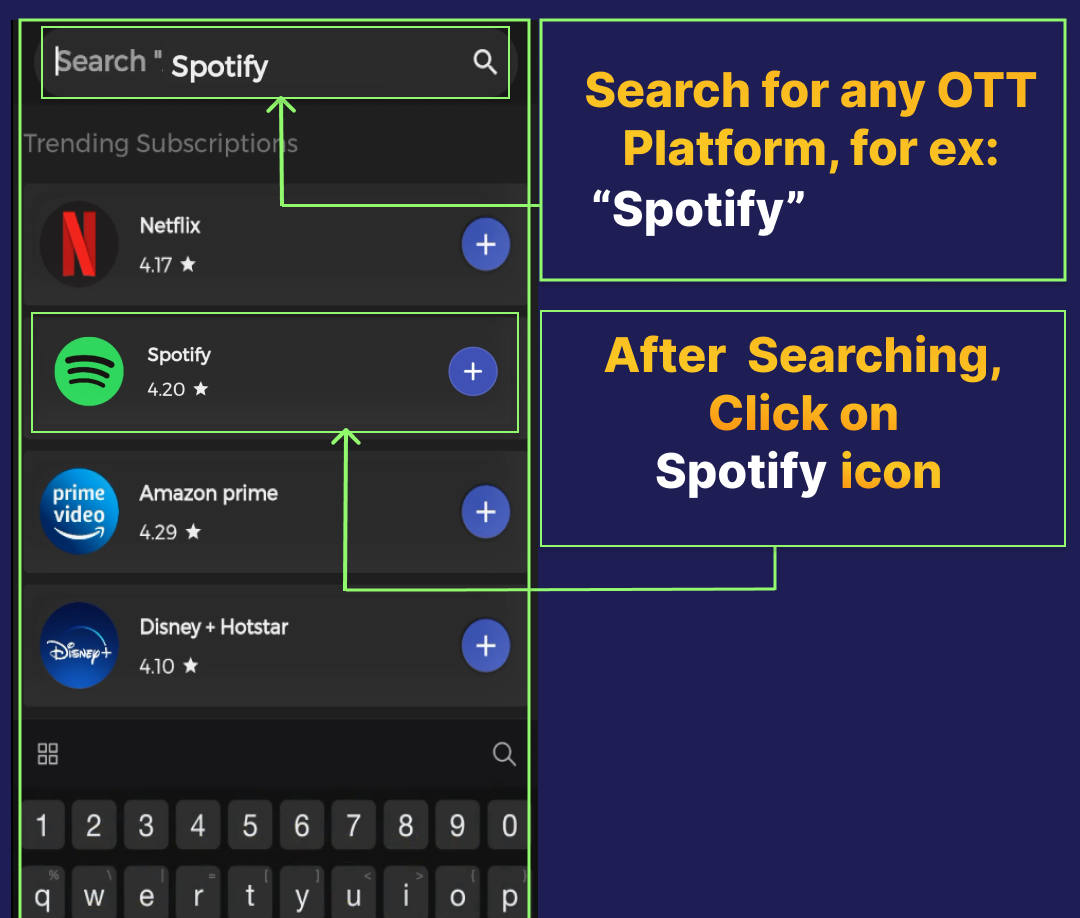
STEP 4: Search for "Spotify" and click on that icon.
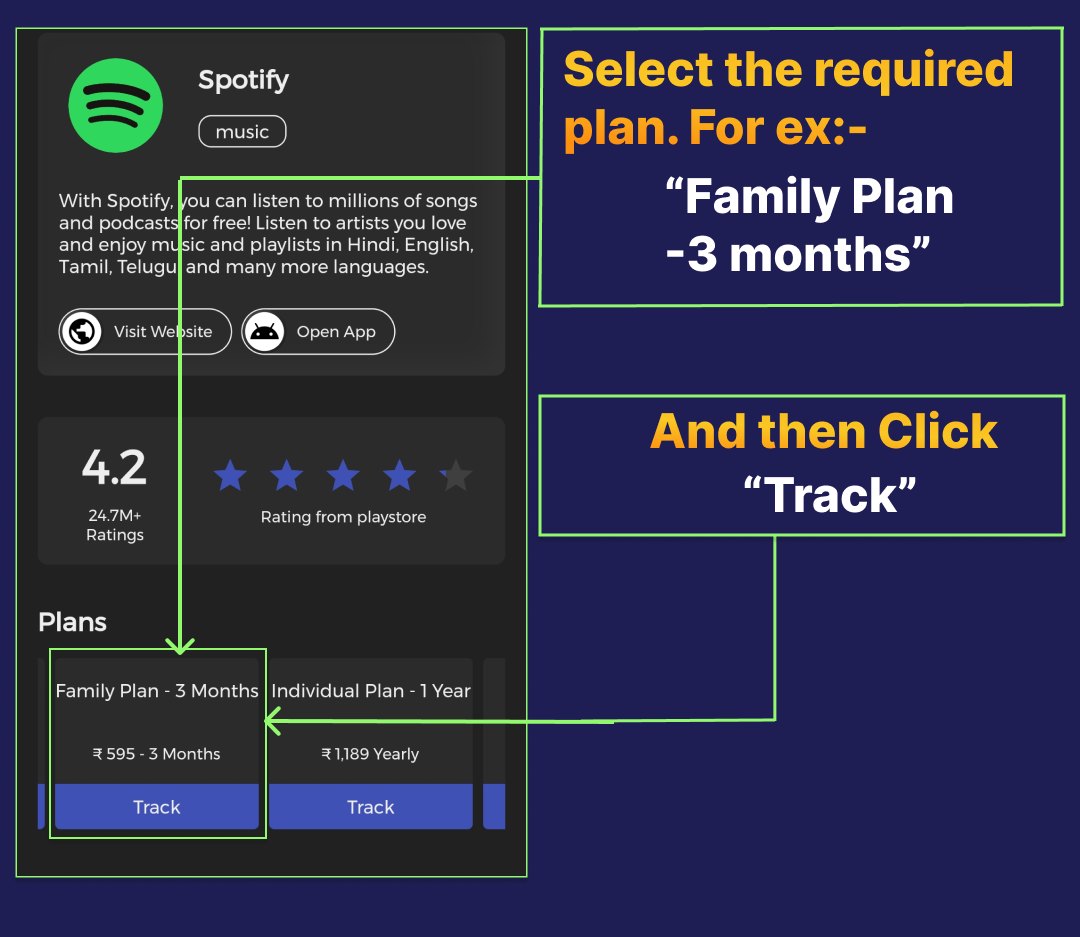
STEP 5: Select the required plan, For ex:- "3 months Family Plan" and then Click 'Track".
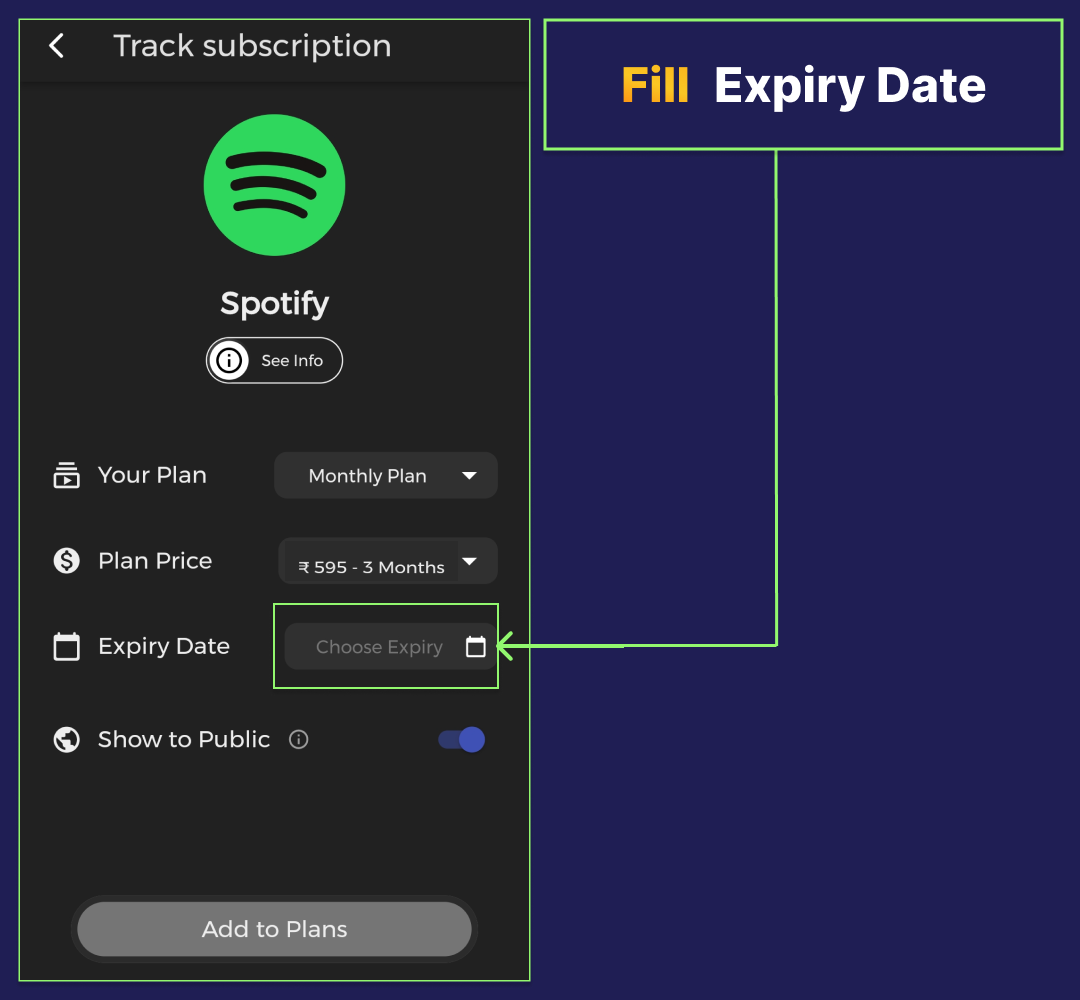
STEP 6: Fill Expiry Date.
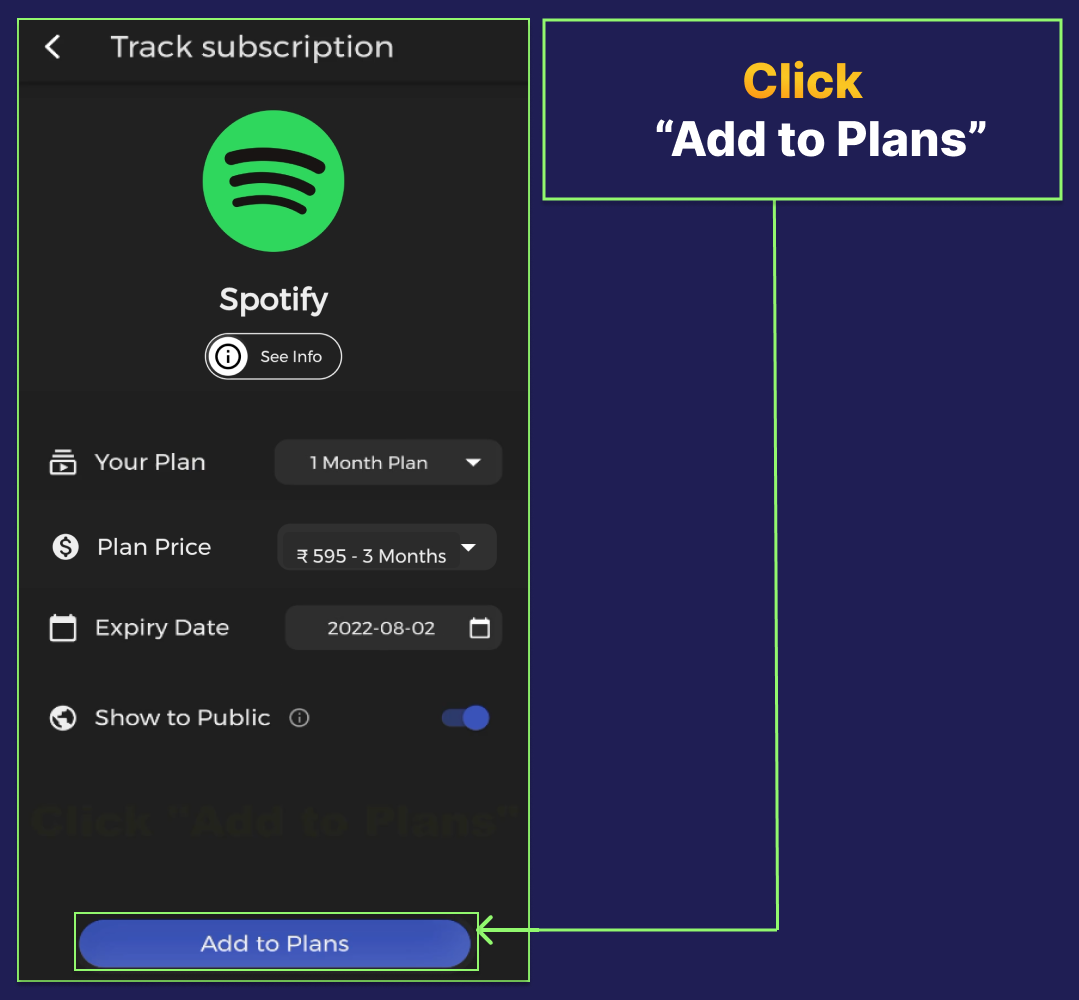
STEP 7: Click "Add to Plans".
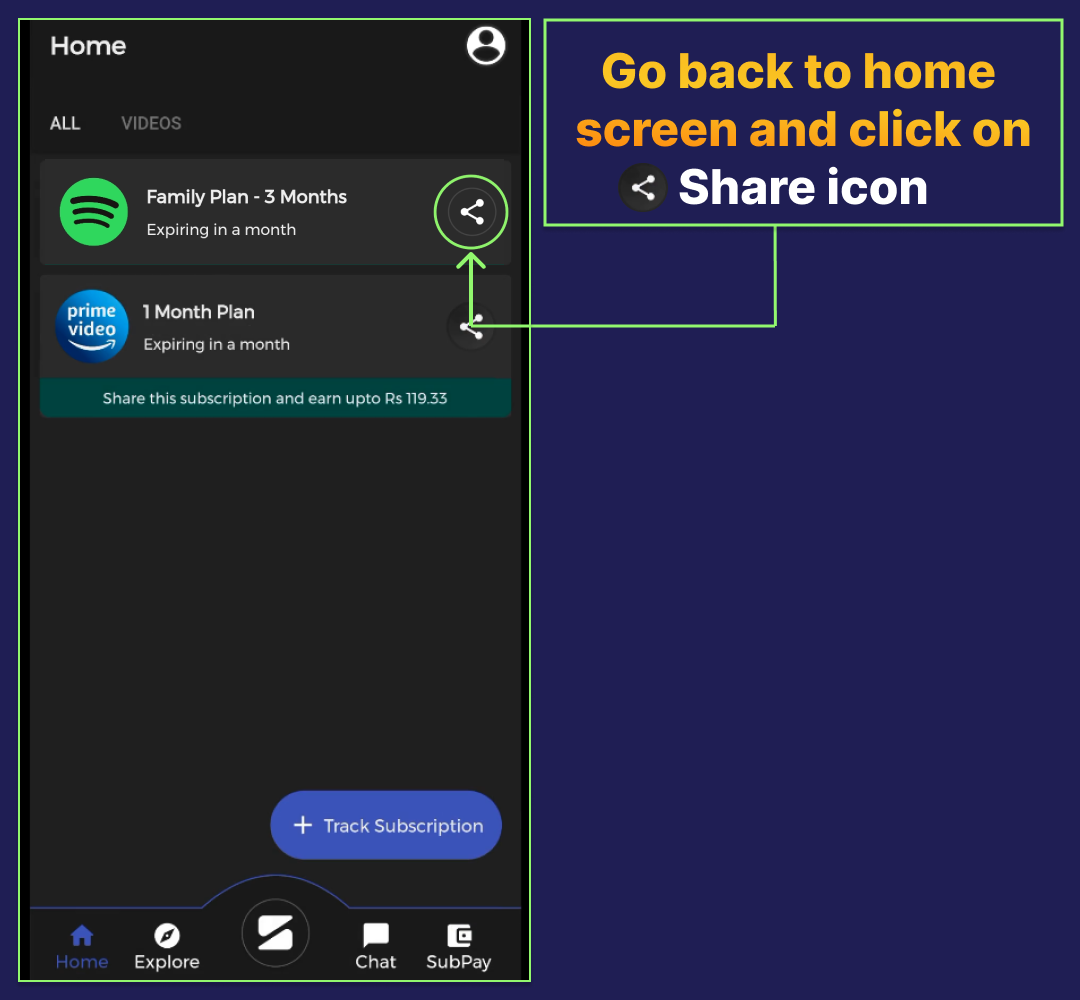
STEP 8: Go back to Home screen and click on "Share icon".
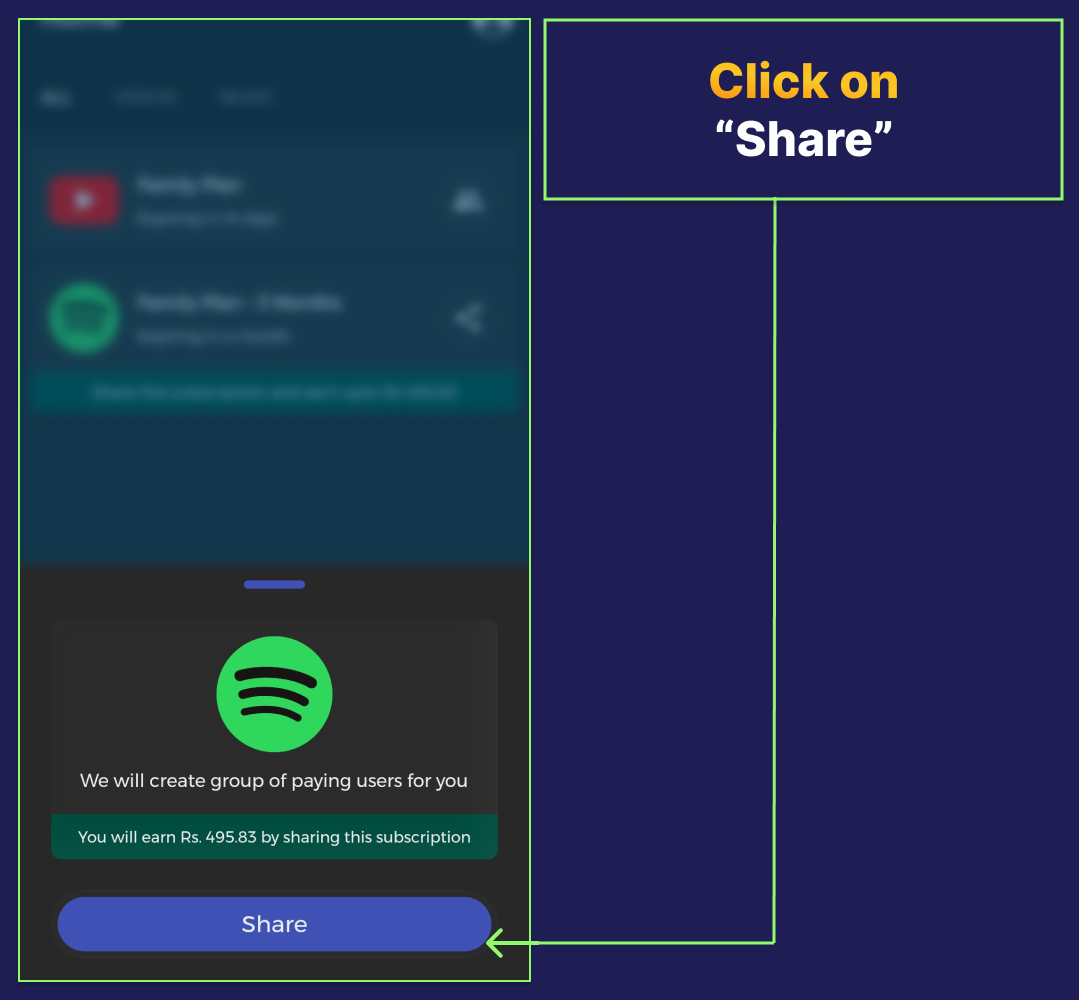
STEP 9: Click on "Share".
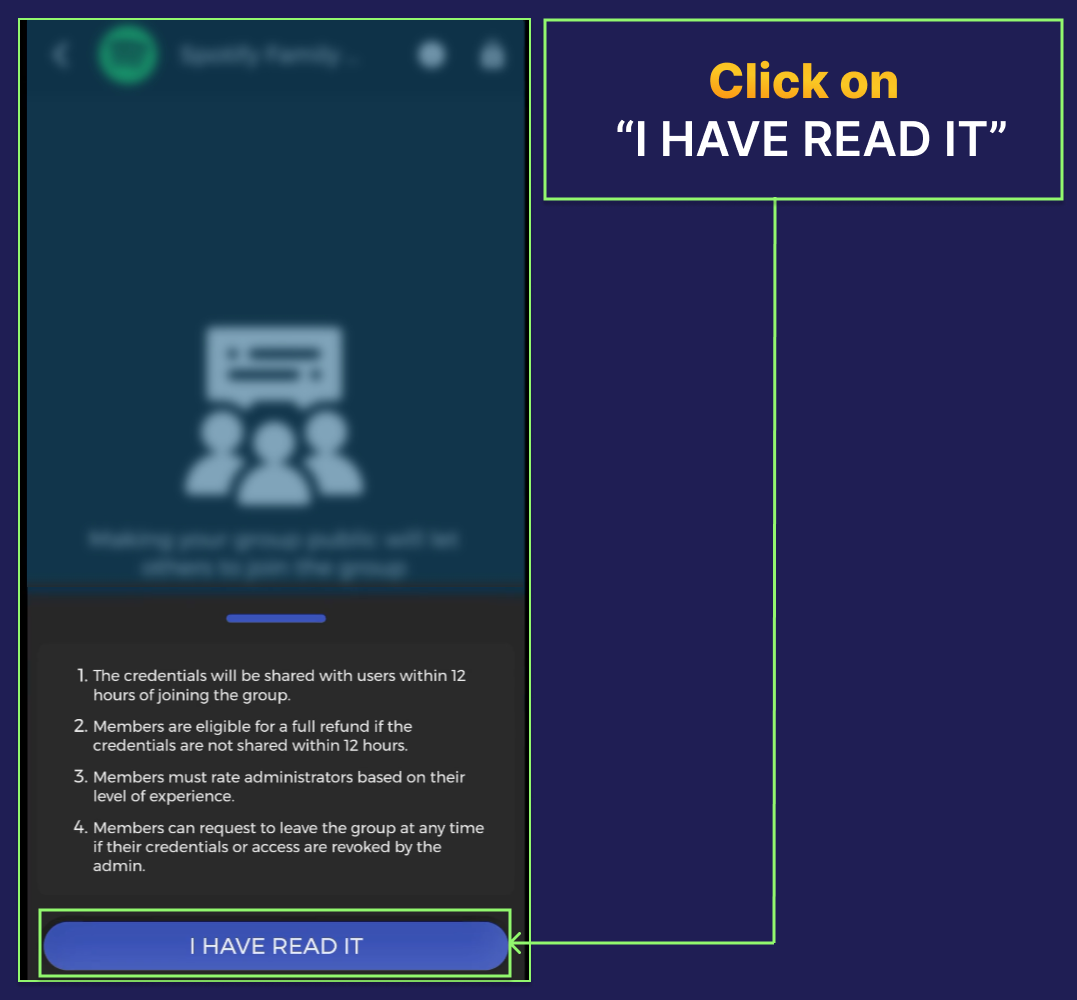
STEP 10: Click on "I HAVE READ IT".
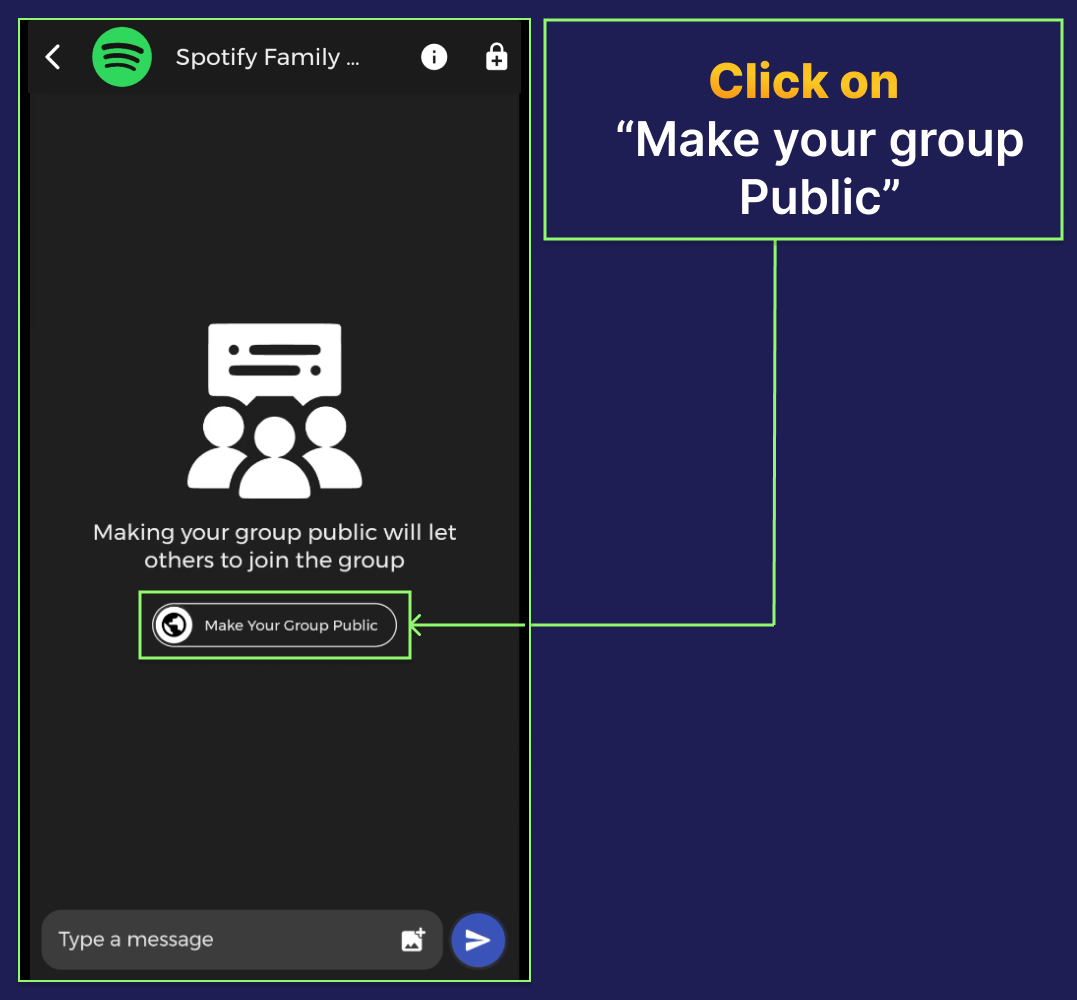
STEP 11: Click on "Make your Group Public".
STEP 12: Upload an screenshot of the purchased plan for expiry verification.
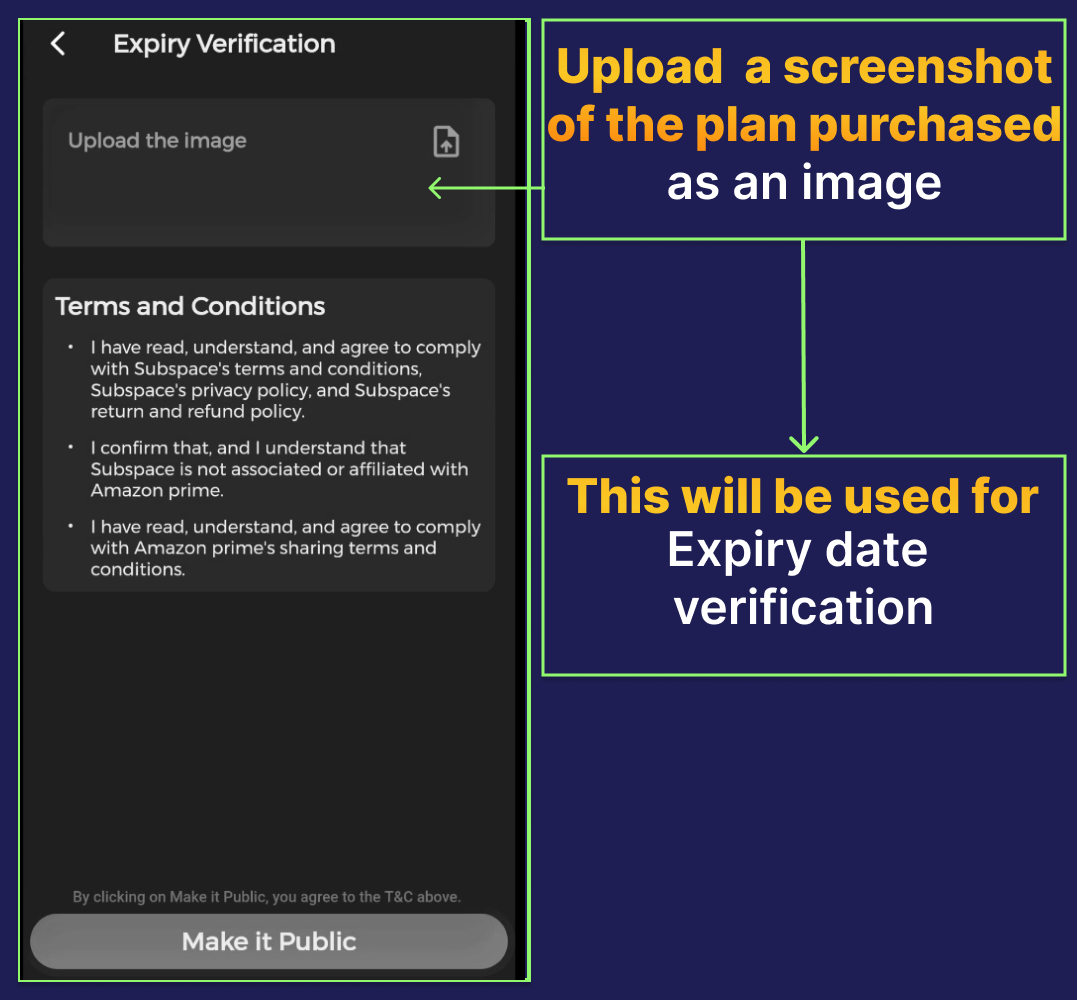
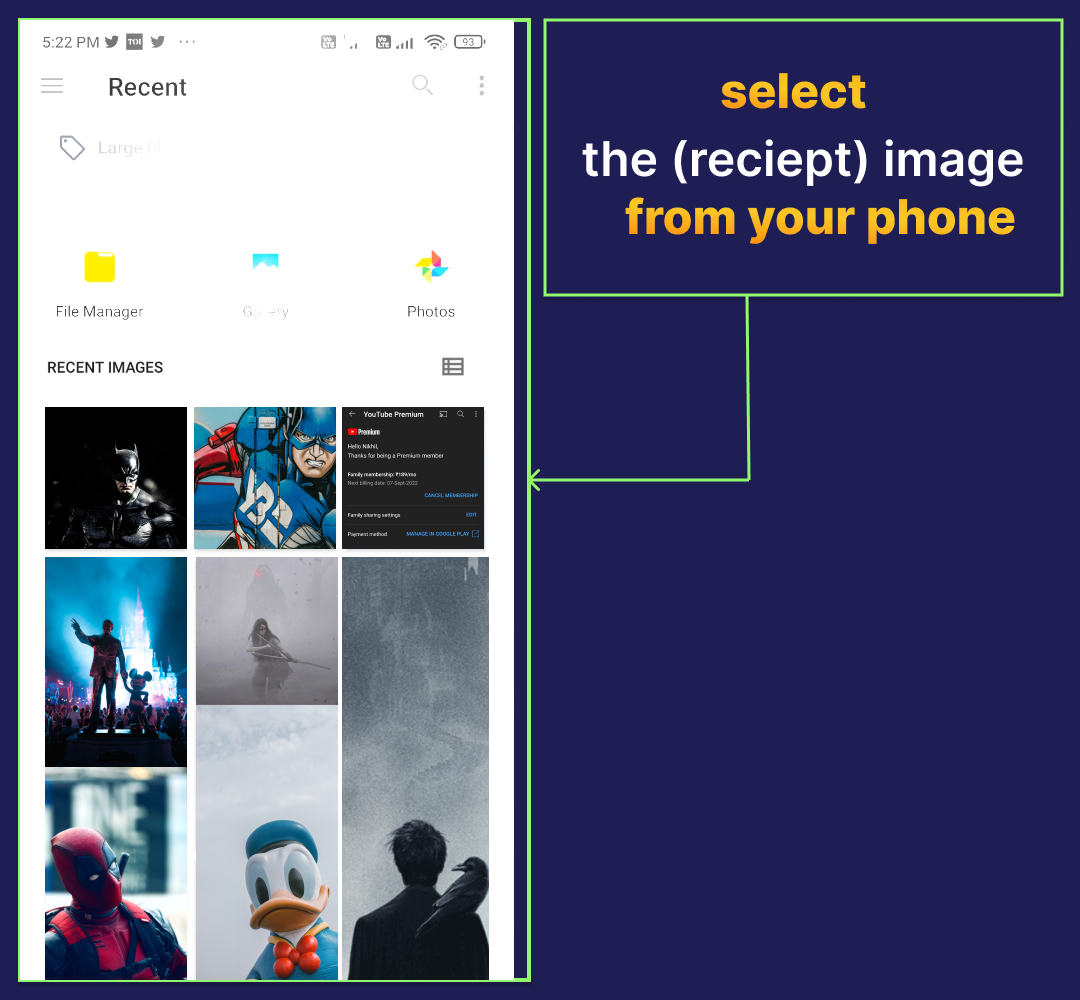
STEP 13: Select receipt image from your phone.
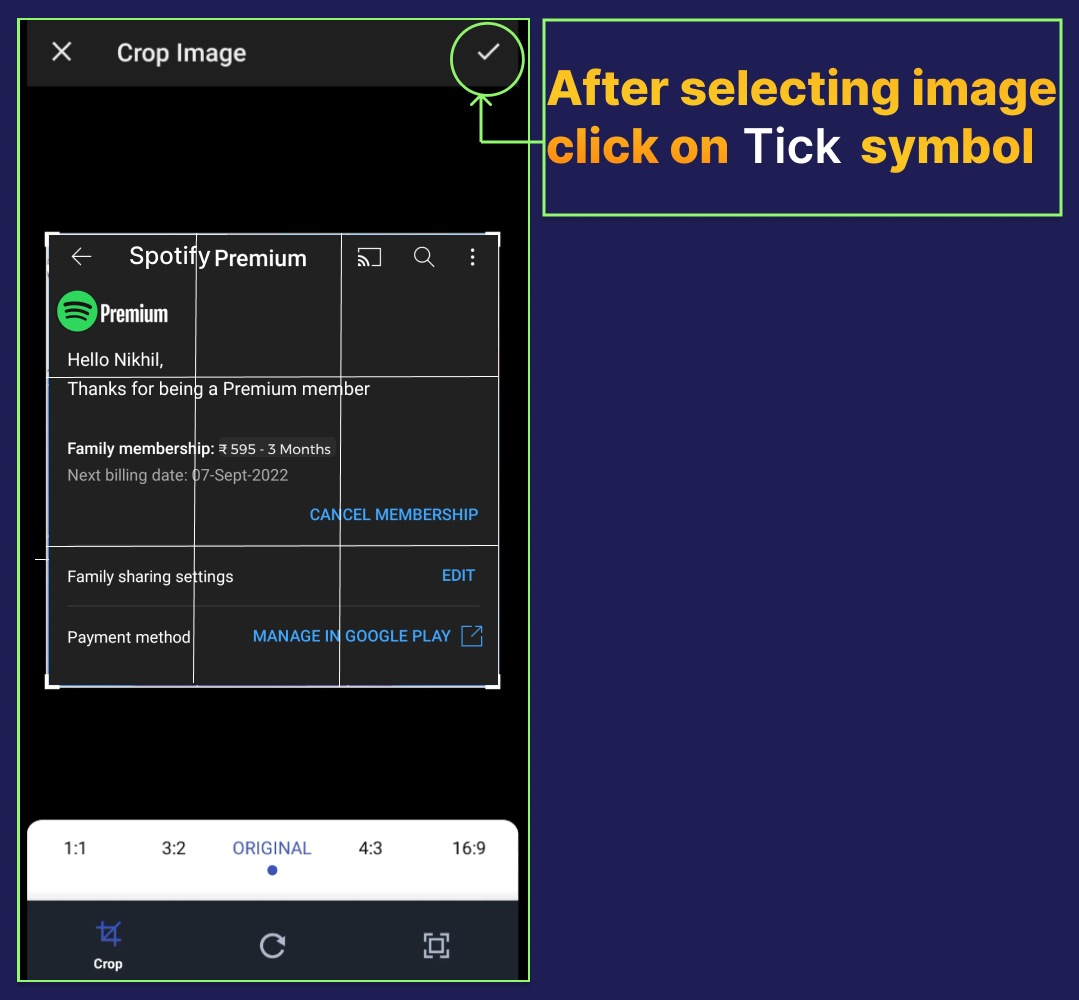
STEP 14: After image selection ,Click on "Tick" Symbol.
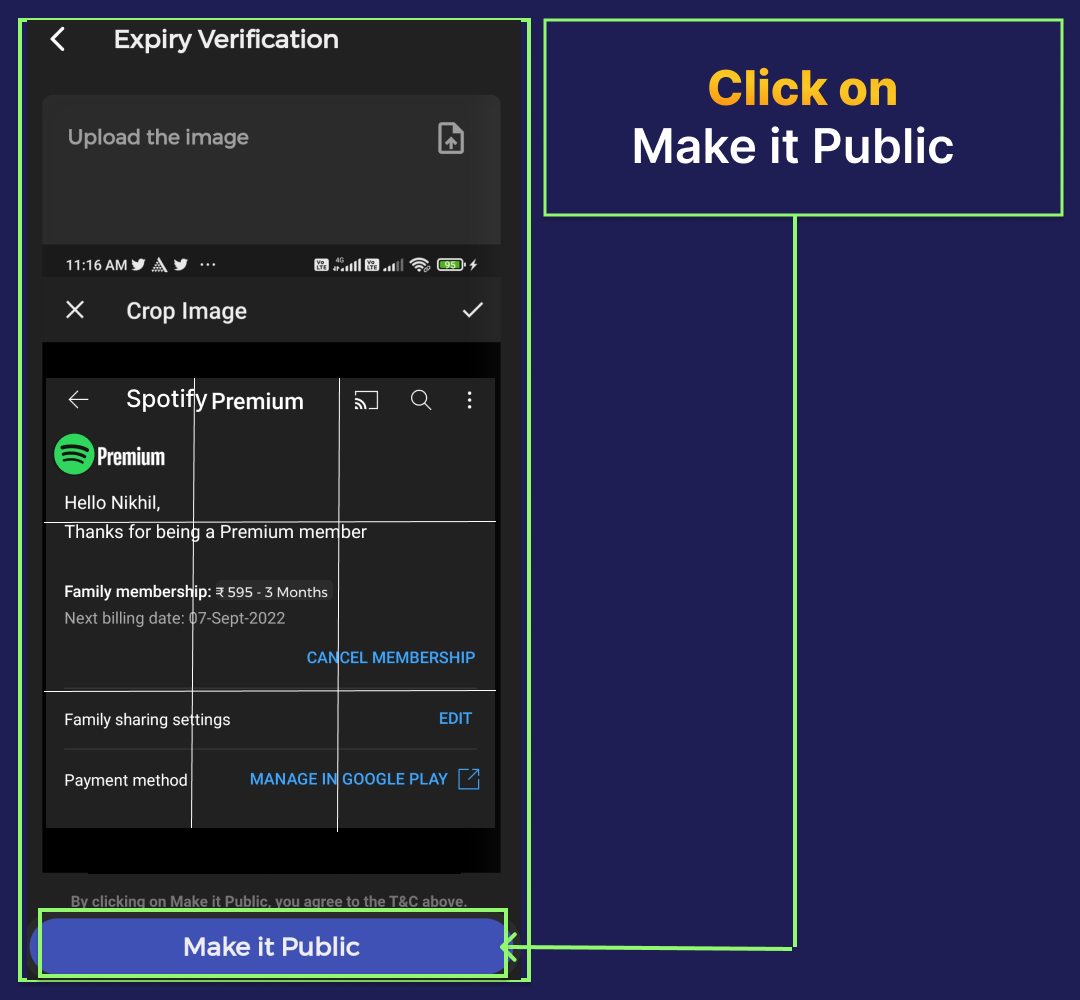
STEP 15: Click on "Make it Public.
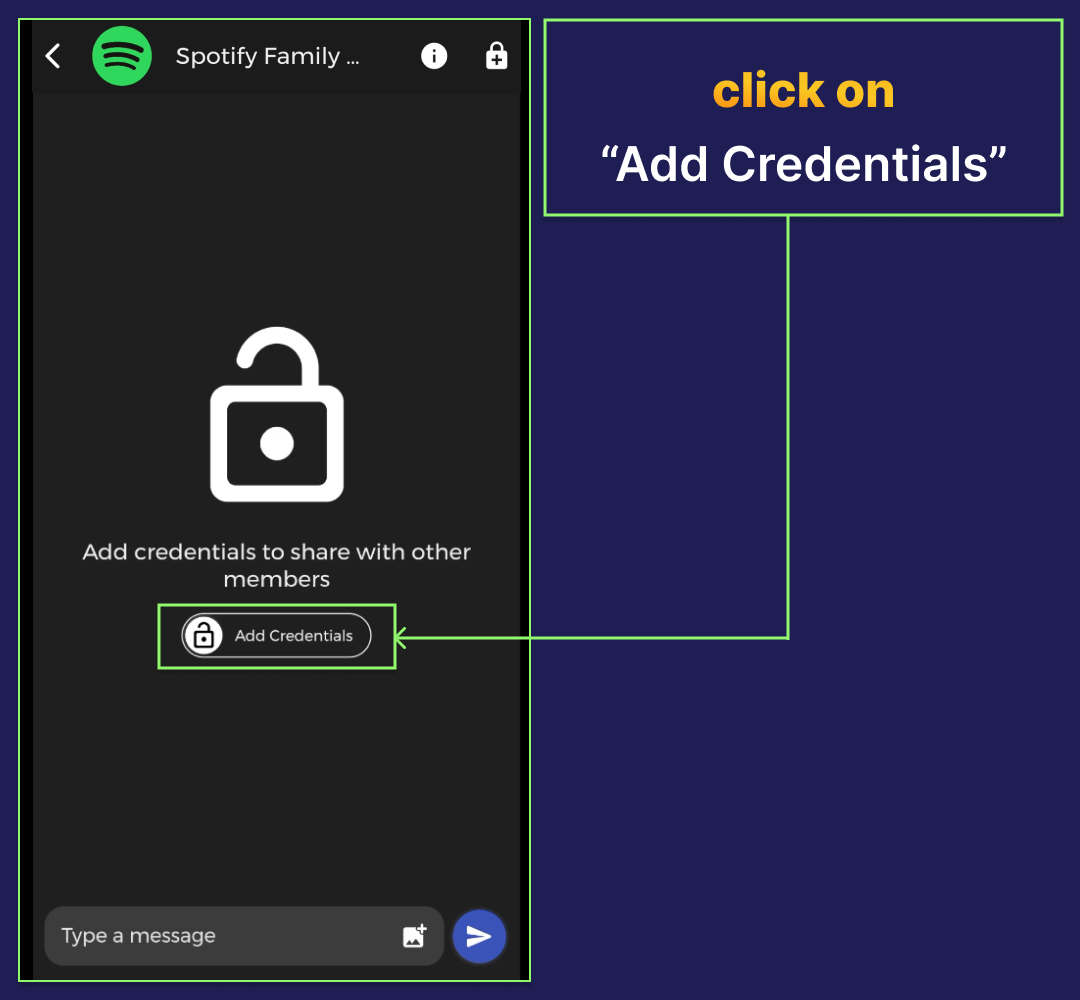
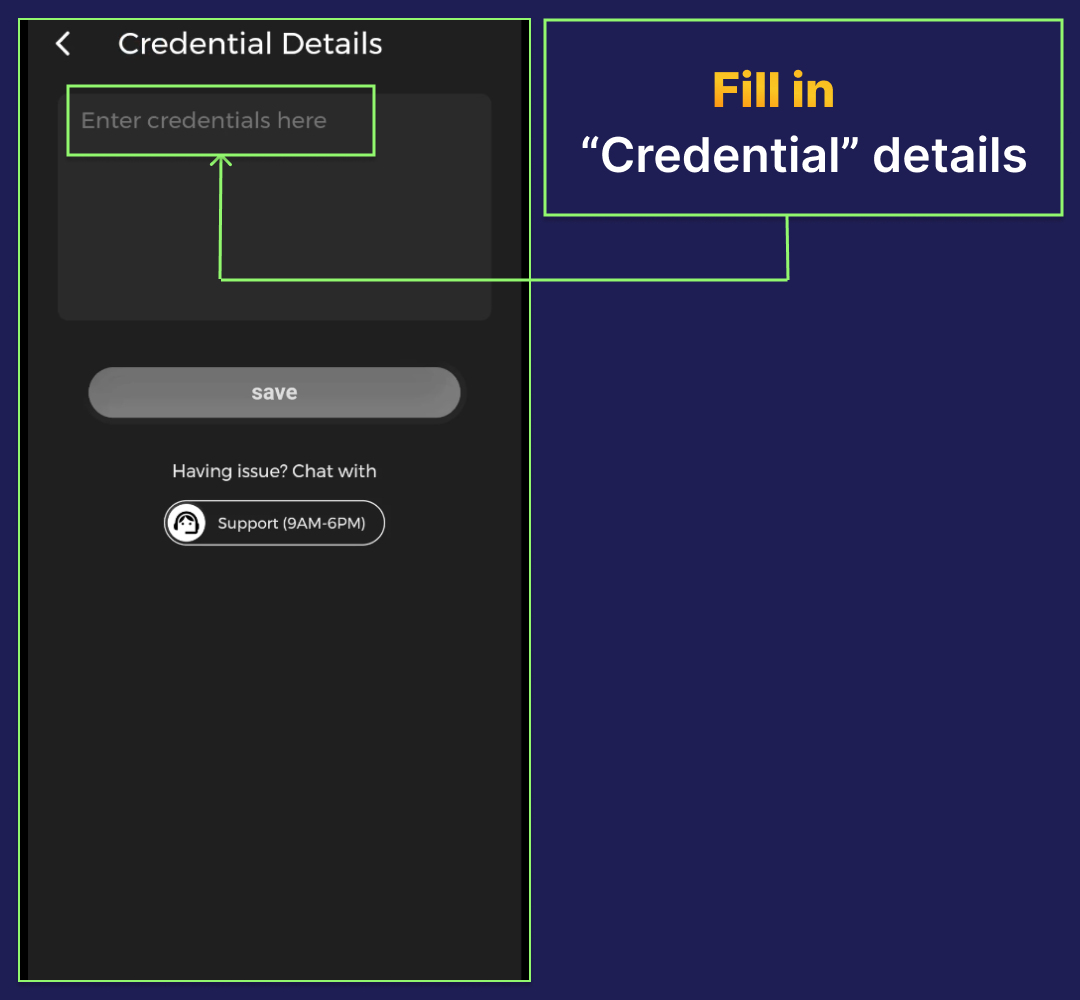
STEP 16: Click on "Add Credentials".
STEP 17: Fill in "Credential details".
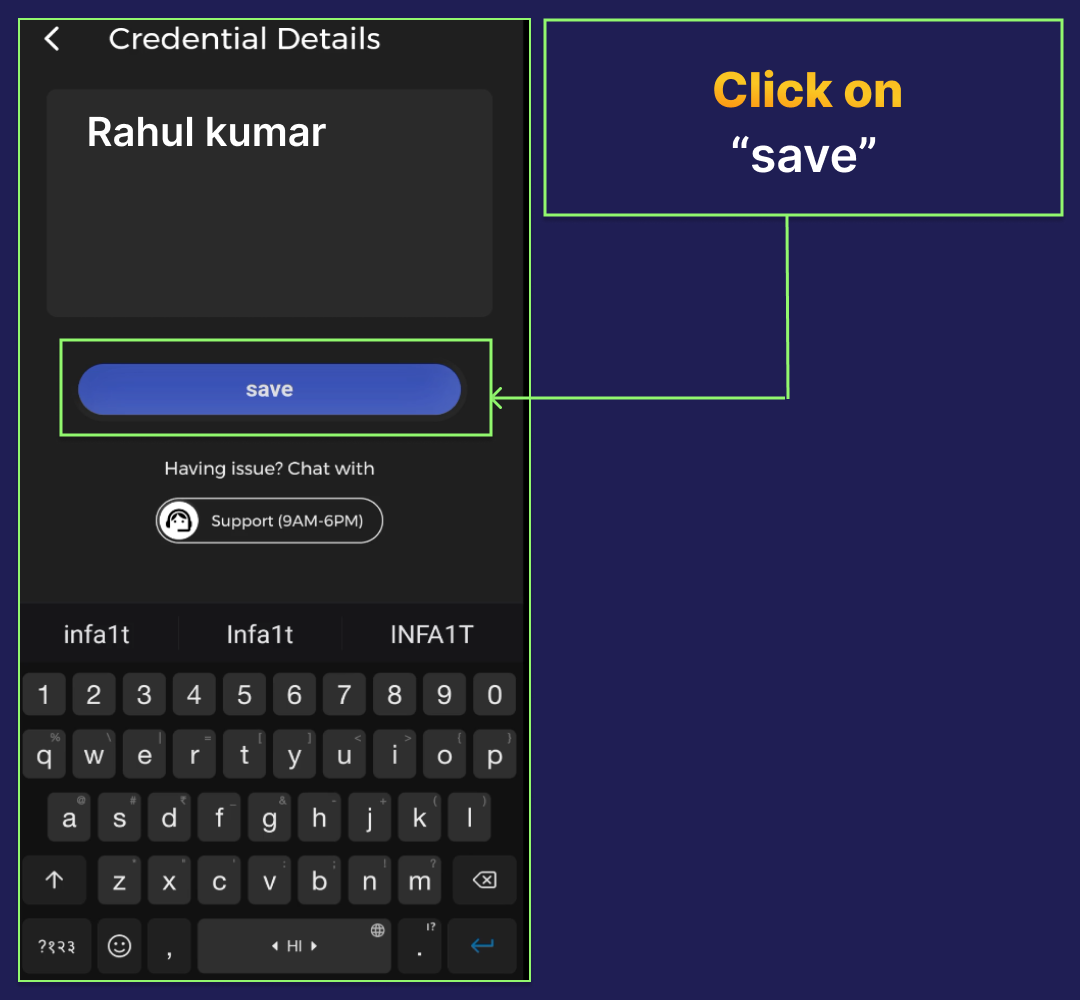
STEP 18: Click on "save".
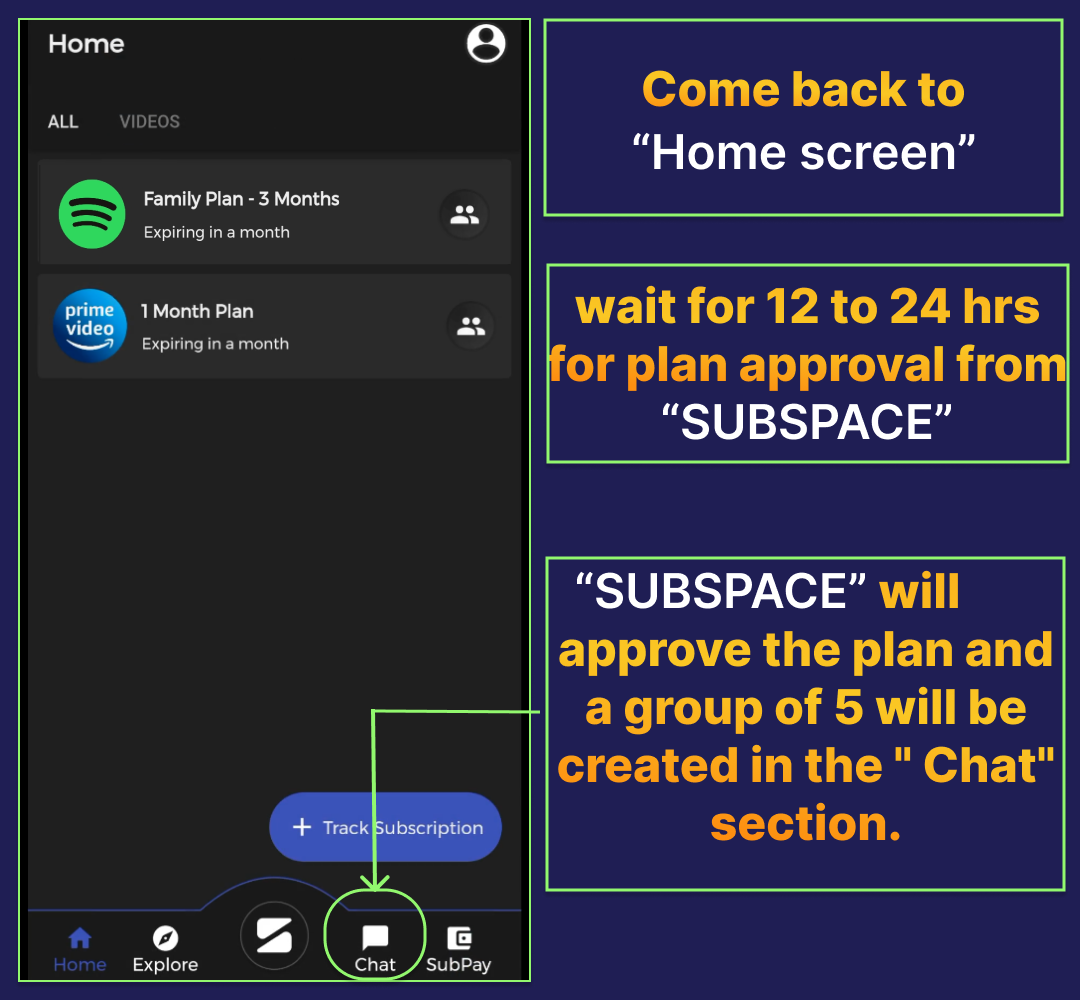
STEP 19: Come back to Home screen and wait for 12-24 hrs for plan approval from SUBSPACE. A group of 5 is created in the "Chat " section.
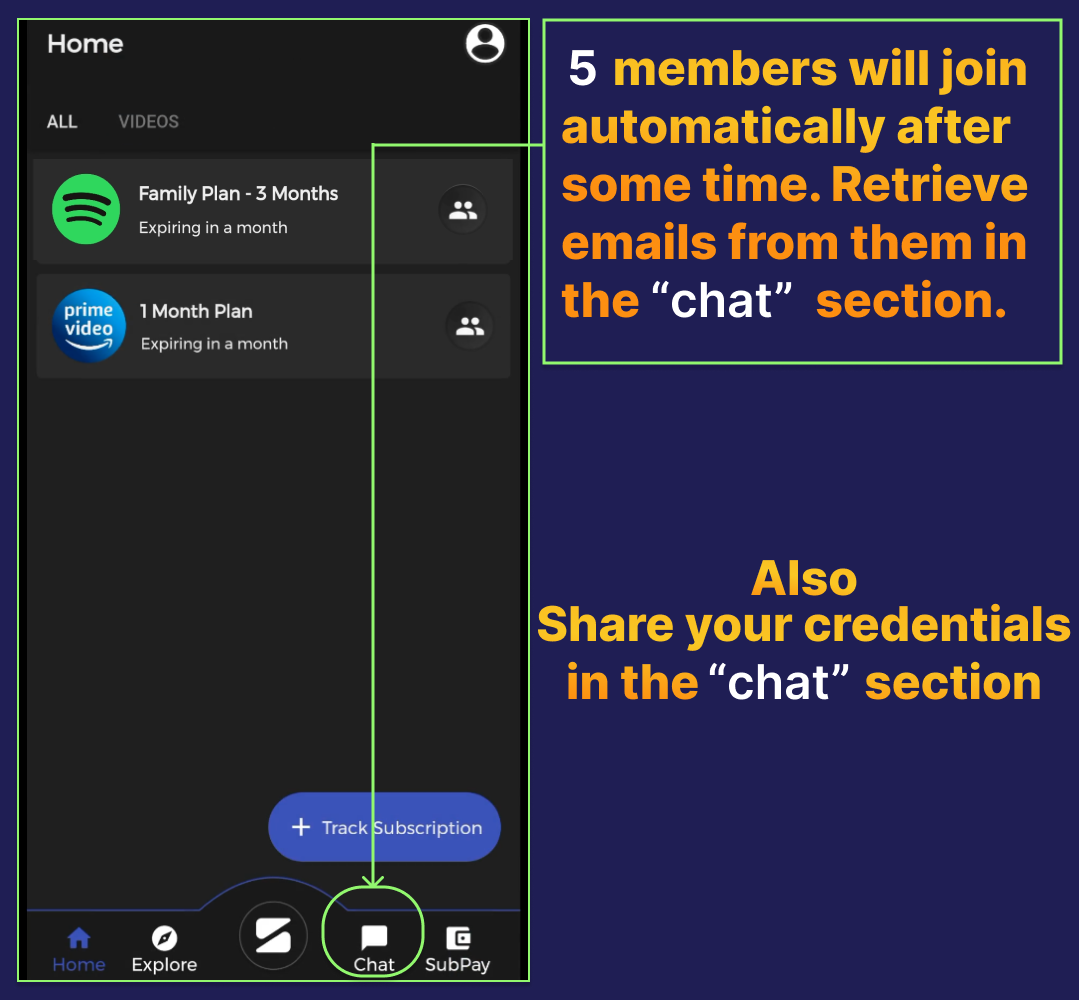
STEP 20: 5 members will automatically join after some time. Retrieve emails from them in the "chat" section. Also share your credentials in the "chat" section.
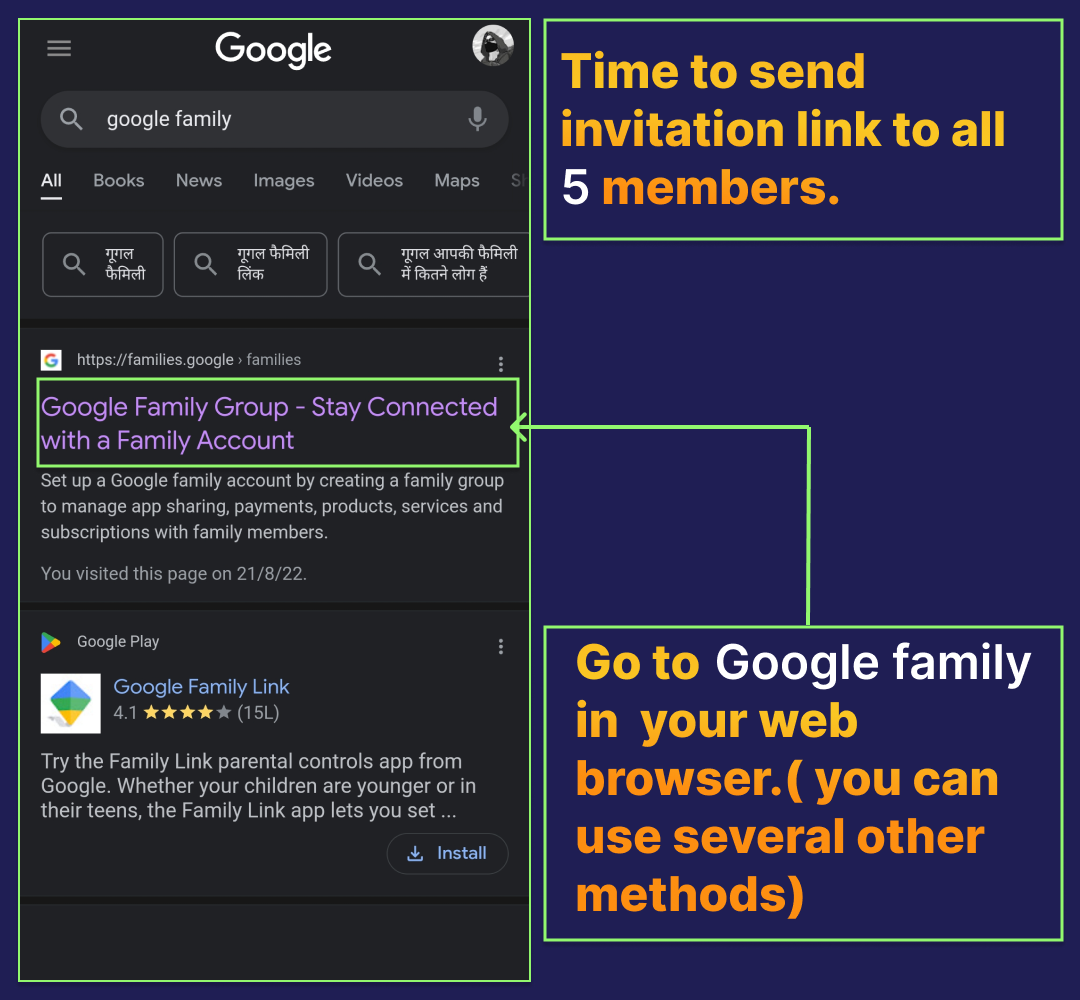
STEP 21: Now, To send invitation link to all 5 members. Go to "Google Family" in the web browser.
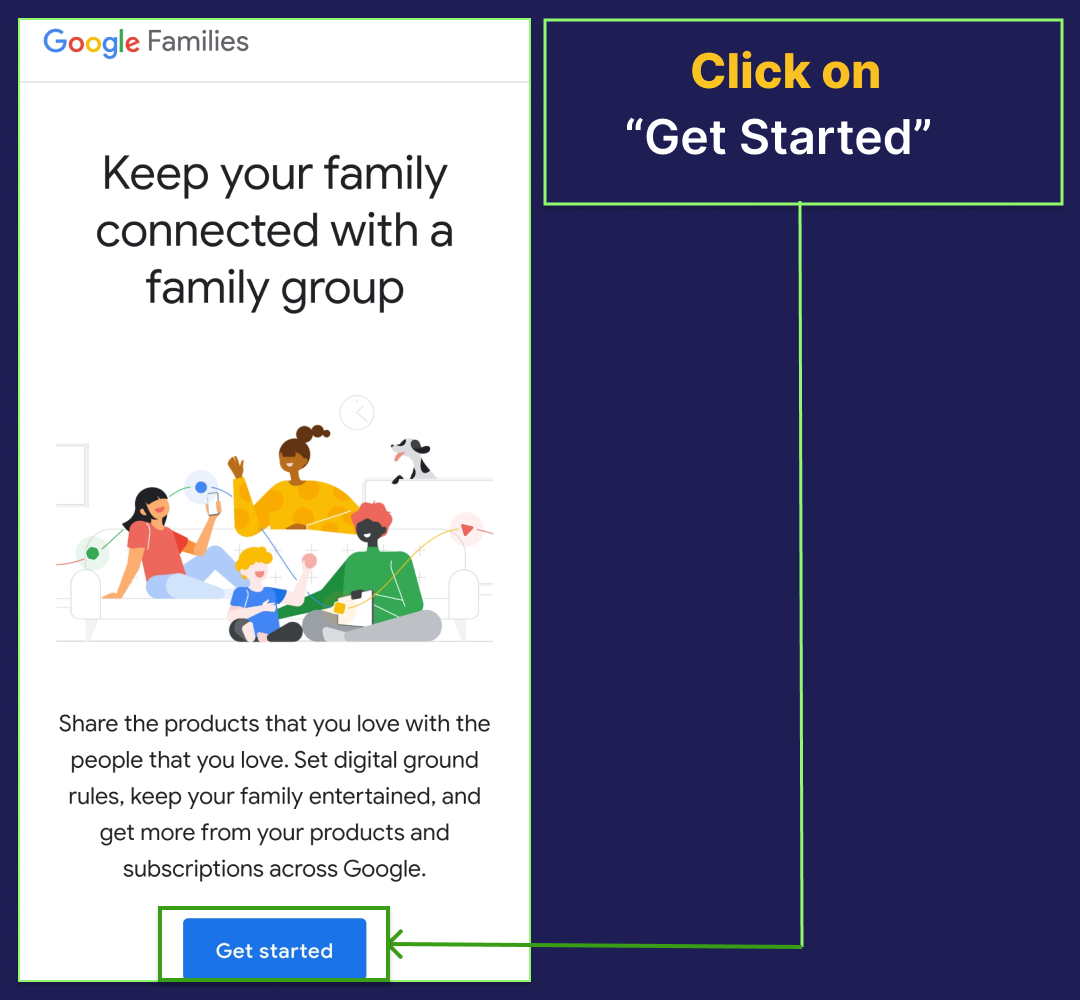
STEP 22: Click on "Get Started".
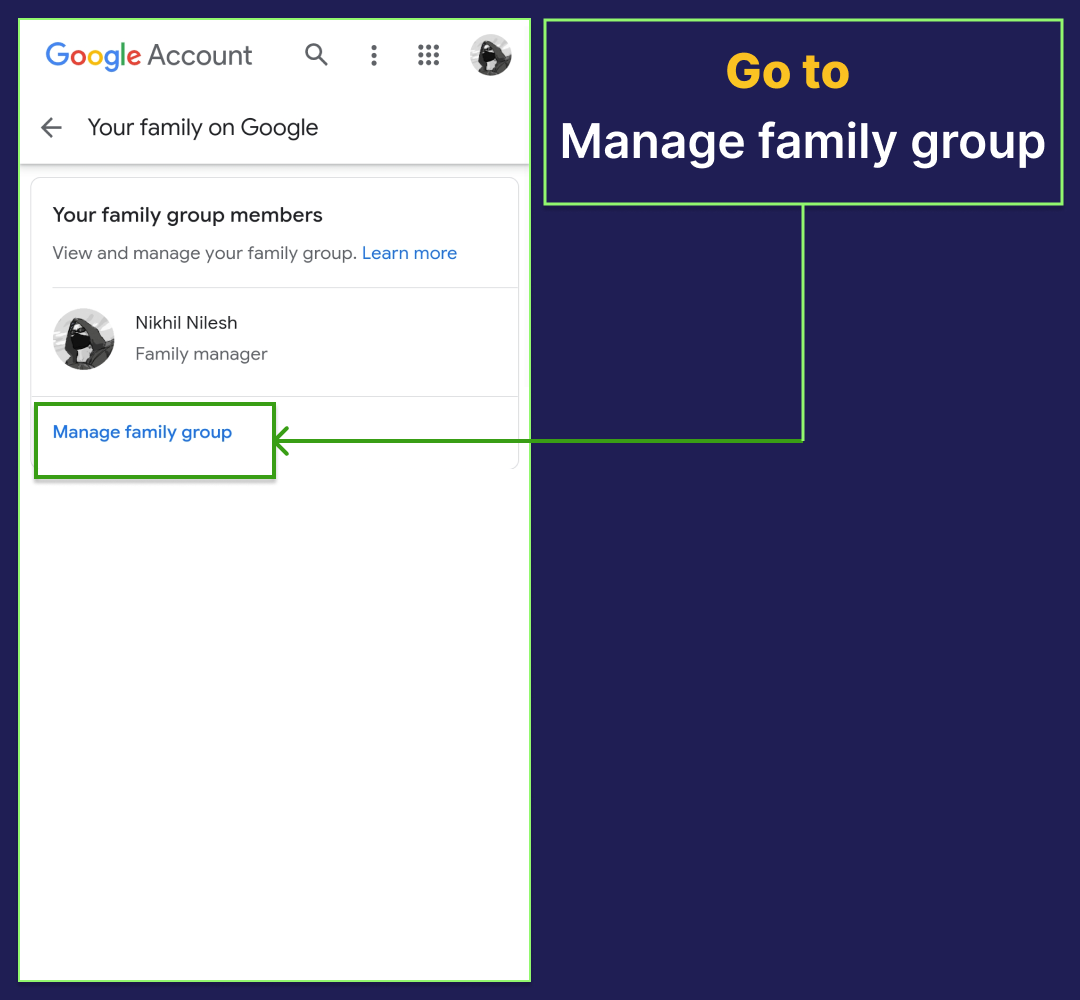
STEP 23: Go to "Manage Family group".
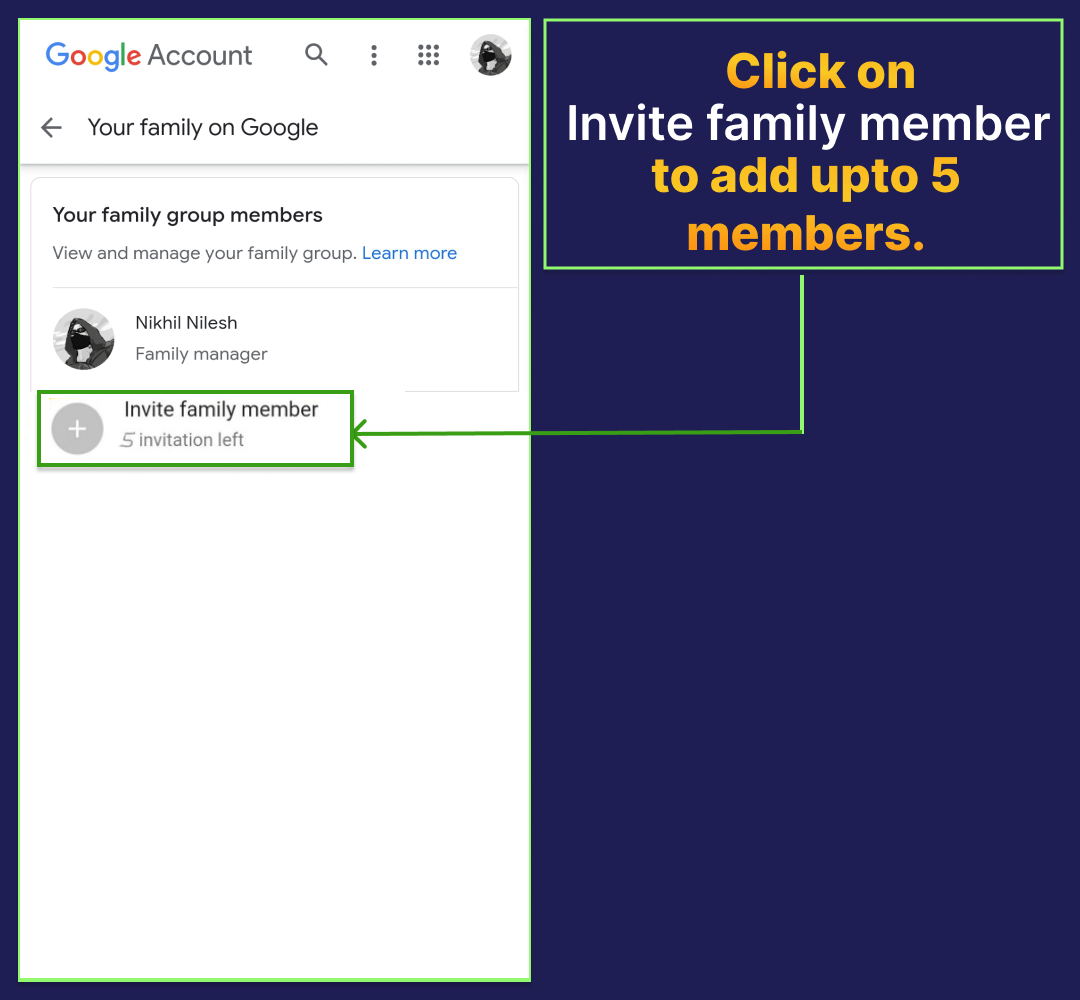
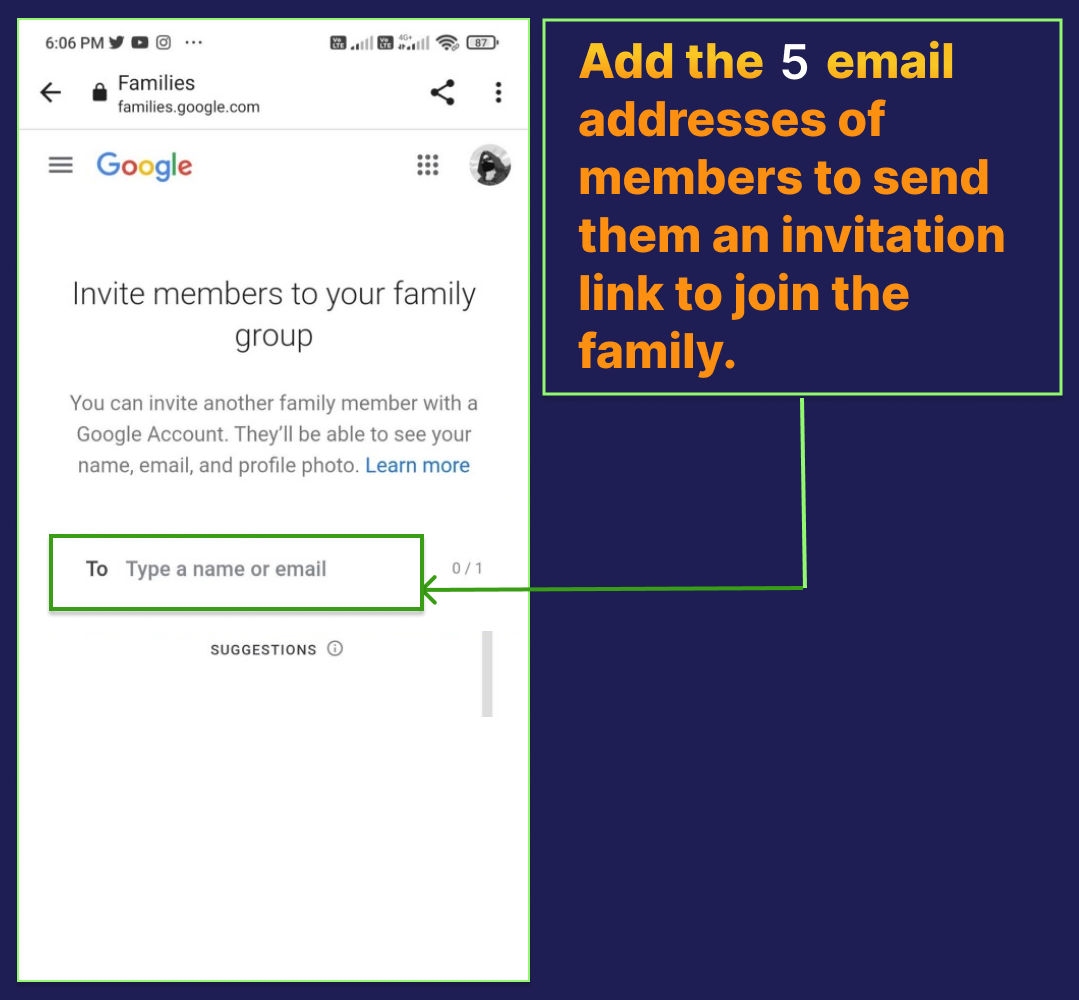
STEP 24: Click on "Invite family member" to add upto 5 members.
STEP 25: Add 5 email addresses of members to send them an invitation link to join the family.
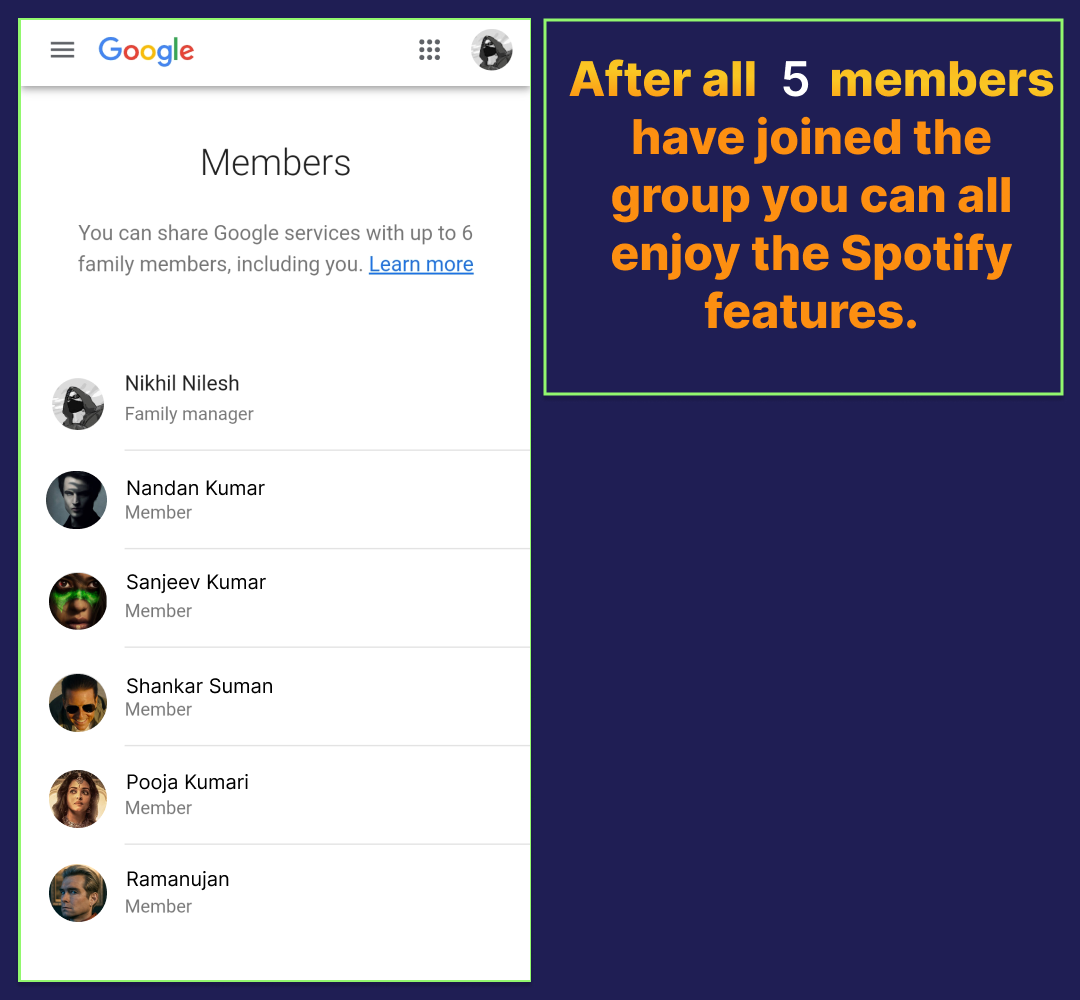
STEP 26: After all 5 members have joined , all can enjoy Spotify premium features.
FINALLY